TV / streaming box
Navigate menus, adjust supported controls and launch TV apps.
Find a supported device on the same router.
Your phone as a mouse, keyboard and remote.
Guide updated for 0.9.79 · 24 October 2026
Use your phone as a Wi-Fi remote for a TV or streaming box,
or a Bluetooth mouse and keyboard for a PC.
Navigate menus, adjust supported controls and launch TV apps.
Find a supported device on the same router.
Use the touchpad and keyboard to control your PC.
With Air, tilt the phone to move the pointer and use its volume buttons to click or change slides.
WindTouch does not provide an infrared (IR) remote.
Bluetooth input requires HID support on the phone and target device.
Wi-Fi TV setup is independent of Bluetooth pairing.
Use the 3-day trial to test your own devices before purchasing.
There is no automatic charge when the trial ends.
You do not need Bluetooth pairing for Wi-Fi TV control.
If you watch through a set-top box, connect to that box to control its channels and apps.
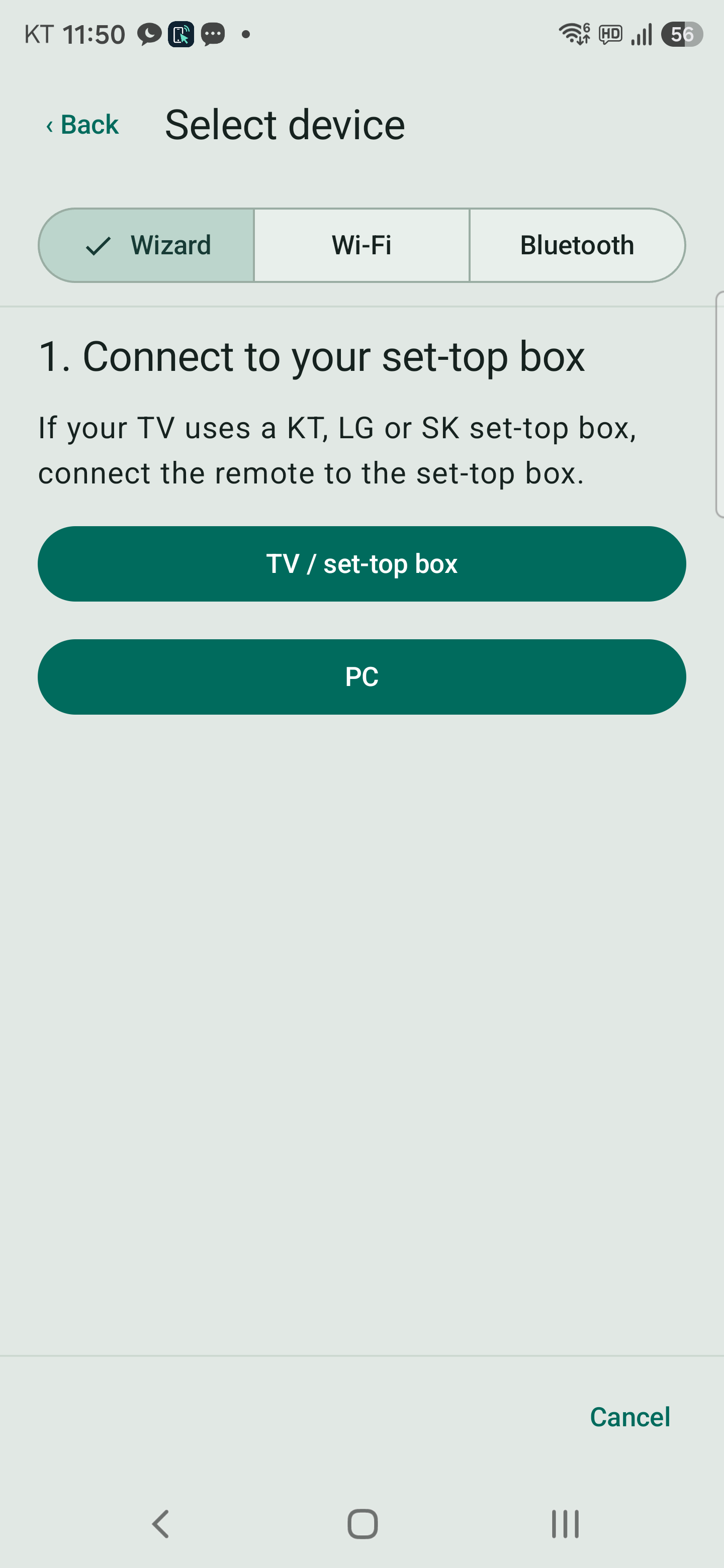
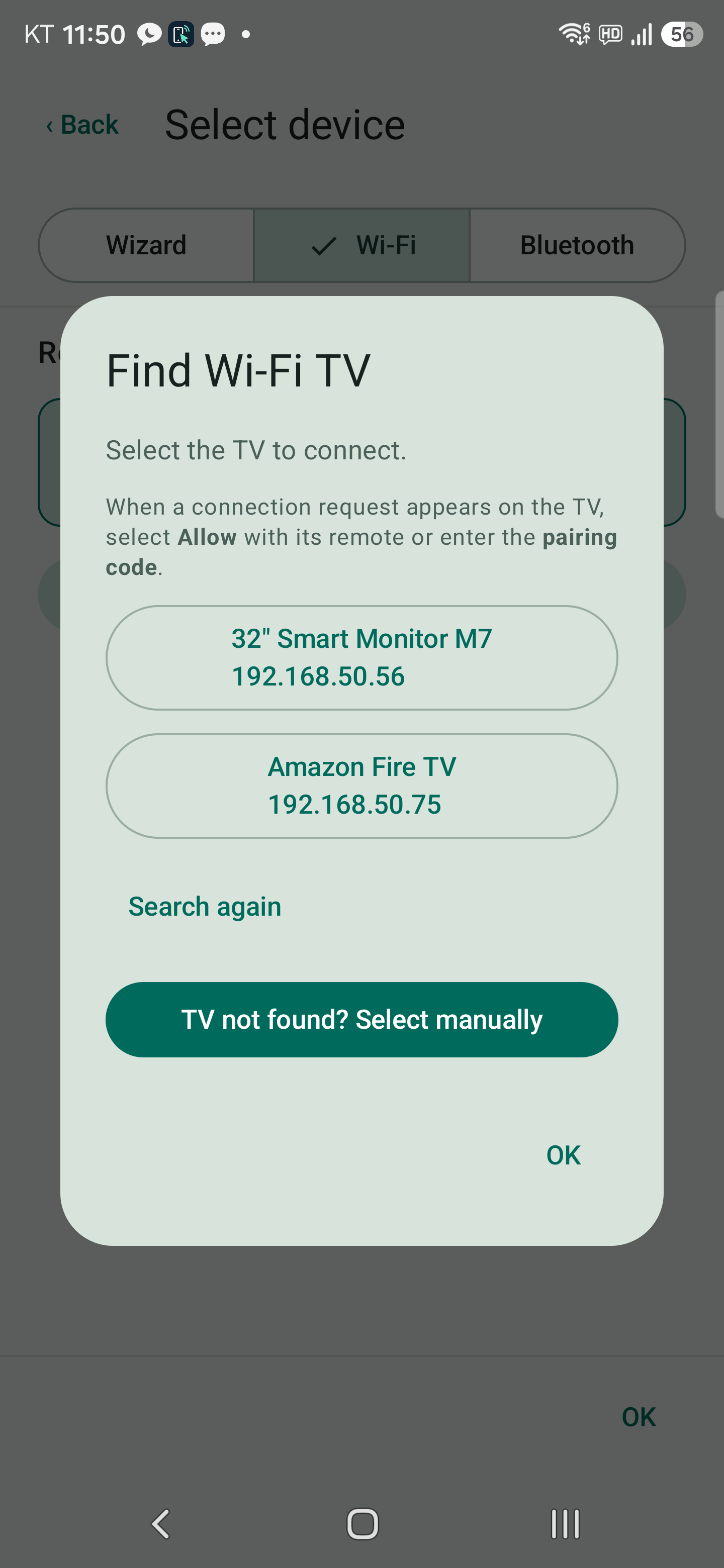
Tap the manual-selection button below the search results.
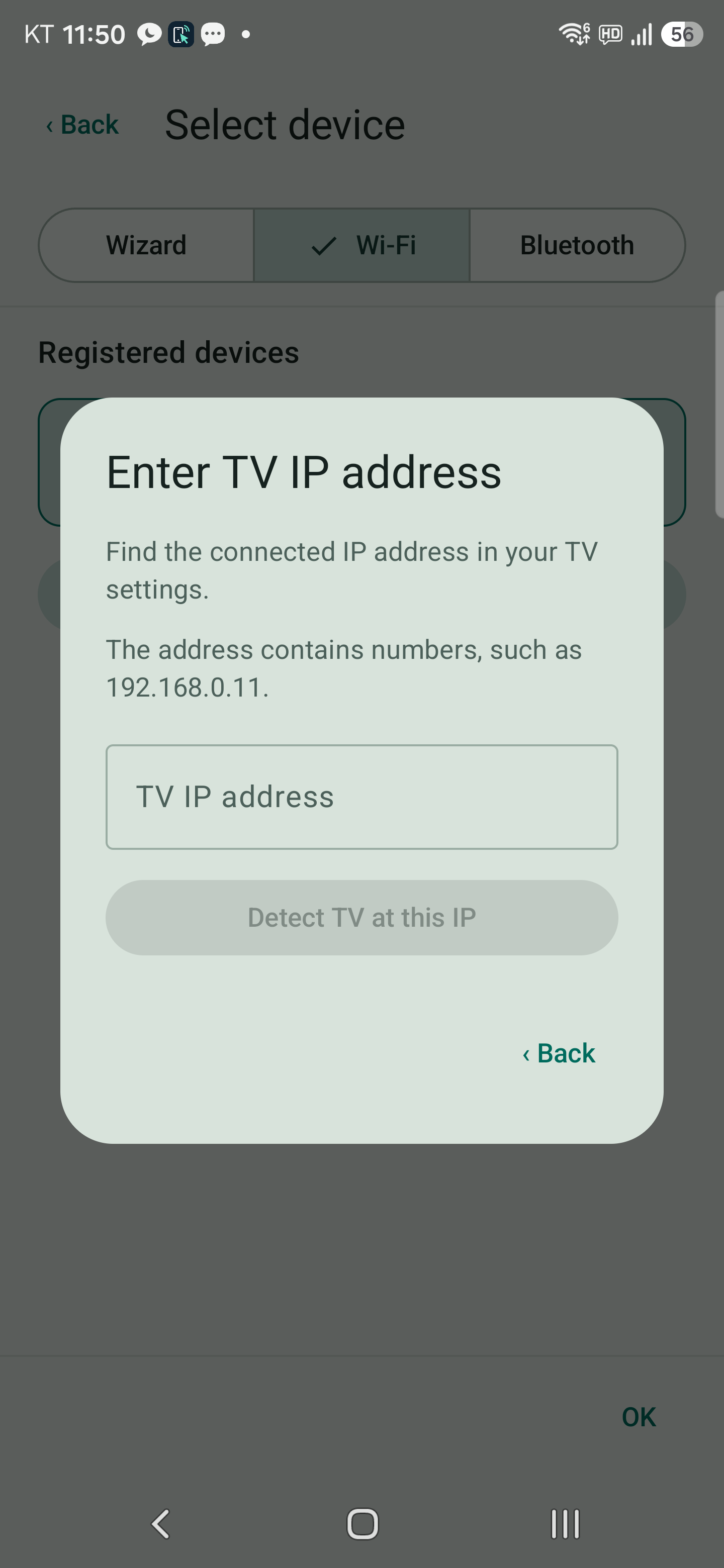
Find the TV IP address in its network settings.
Enter the address, such as 192.168.0.11, and check the TV at that IP.
Guest and public networks may block discovery or communication between devices.
Entering a public IP does not bypass a firewall or provider restrictions.
The phone still needs a network route to the device.
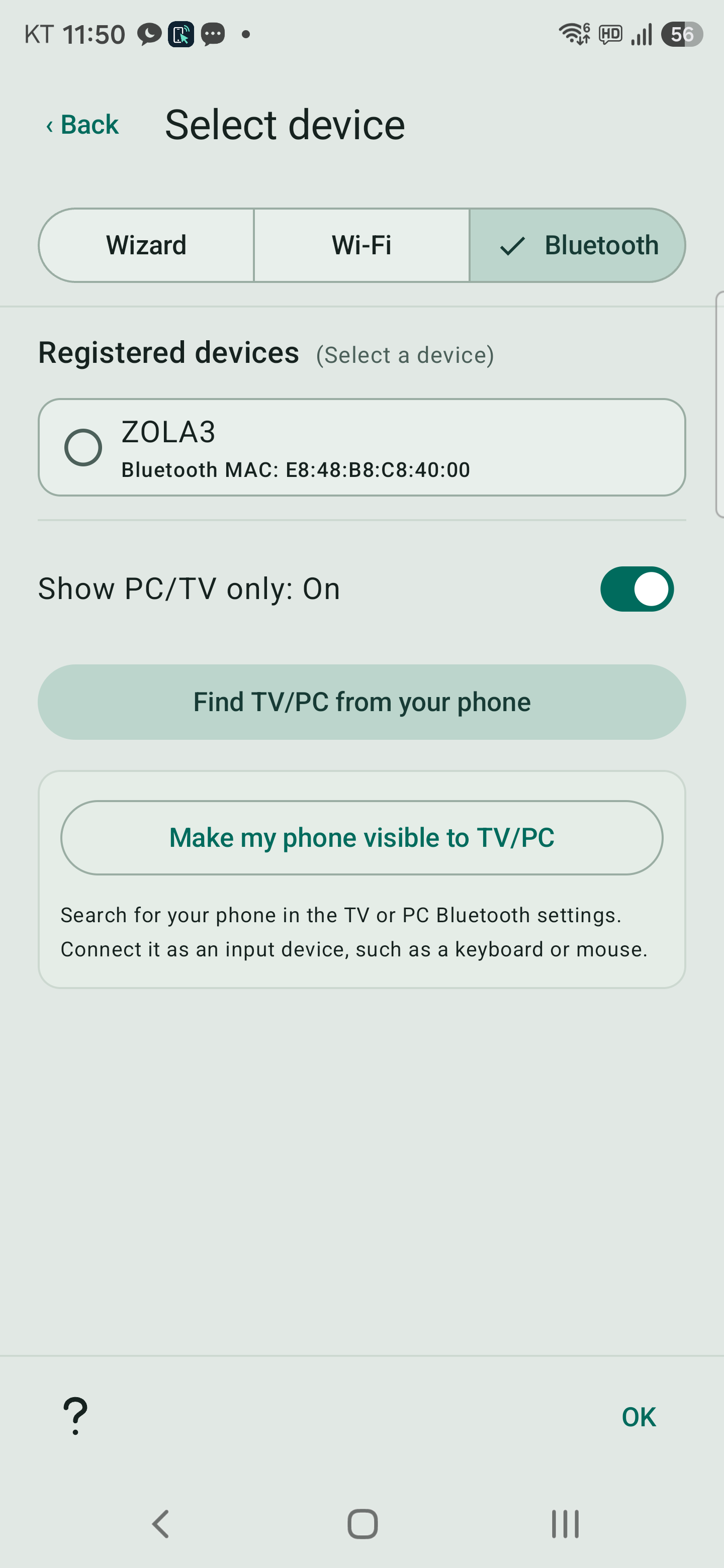
If the PC cannot be found, use Make my phone visible to TV/PC and allow discovery.
Within two minutes, select the phone in the PC’s Bluetooth add screen.
On a TV, use its keyboard/input-device menu, not the speaker/audio menu.
Tap a saved Wi-Fi or Bluetooth item to connect immediately.
The Remote picker remembers the last Wizard / Wi-Fi / Bluetooth tab.
PC/TV only filters both saved devices and discovery results.
Hold an item to open a Delete / Cancel confirmation.
After removing Bluetooth pairing, check for a remaining phone entry on the PC or TV as well.
Switching to a Wi-Fi target disconnects the existing Bluetooth input link.
Do not assume a lost Wi-Fi connection automatically falls back to Bluetooth.
Choose the desired device and connection type using Switch.
Open the TV’s details in the phone’s Bluetooth settings.
Disable an unwanted audio connection and check input-device pairing separately.
Wi-Fi remote control is independent of Bluetooth audio.
Discovery, pairing and mouse/keyboard connection are separate stages.
After approving the PIN, verify actual pointer movement.
The bottom tabs are Remote → Mouse → Keyboard → Settings.
A fresh installation follows the system theme.
Switch in the top bar opens the device picker for the current tab.
Remote provides Wizard, Wi-Fi and Bluetooth tabs.
Mouse and Keyboard use the Bluetooth input-device picker.
Tap ? for help with the current screen.
A down-arrow hint at the lower right means more help is available below.
Reopen the introduction through ? help → Getting started at the top.
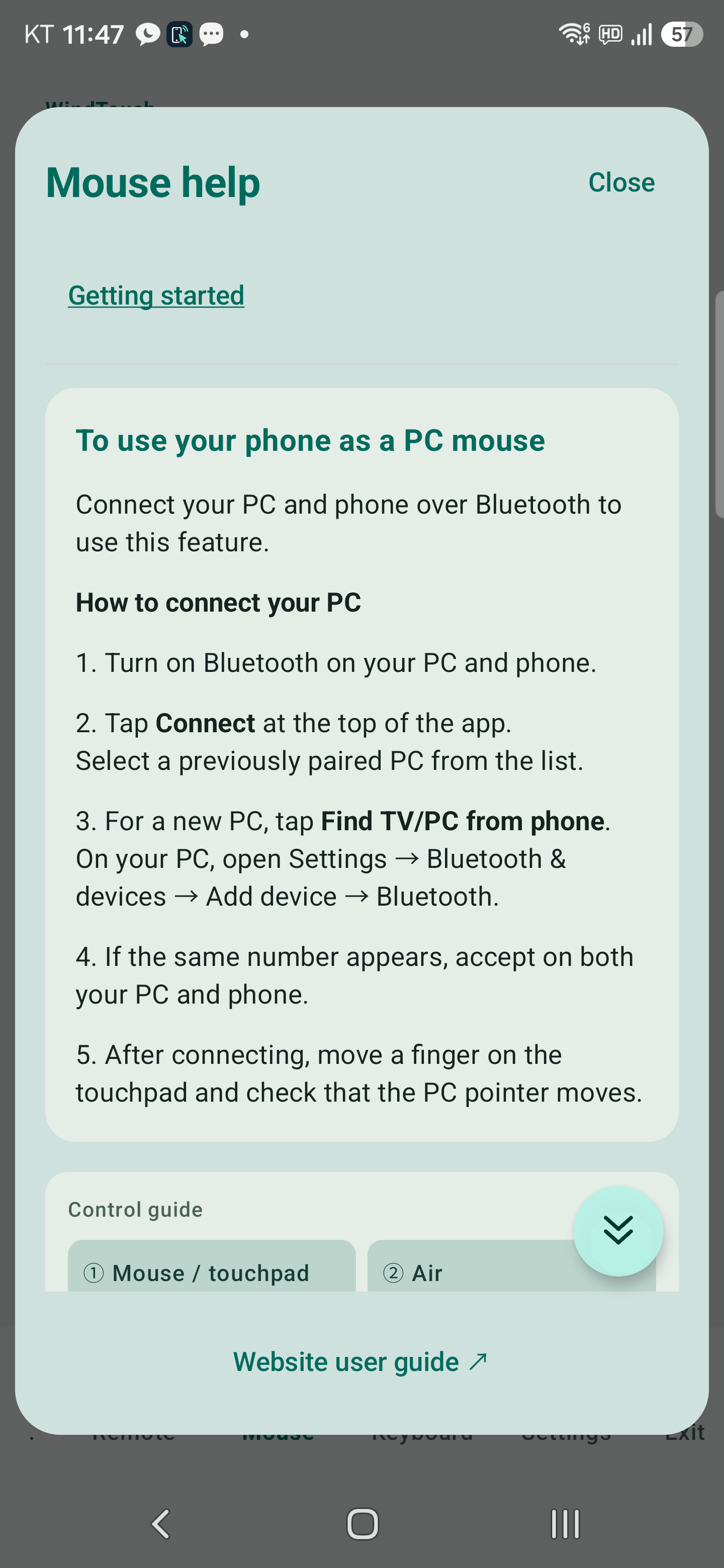
Connect your PC as a Bluetooth input device first.
A Wi-Fi TV remote connection alone does not provide PC mouse input.
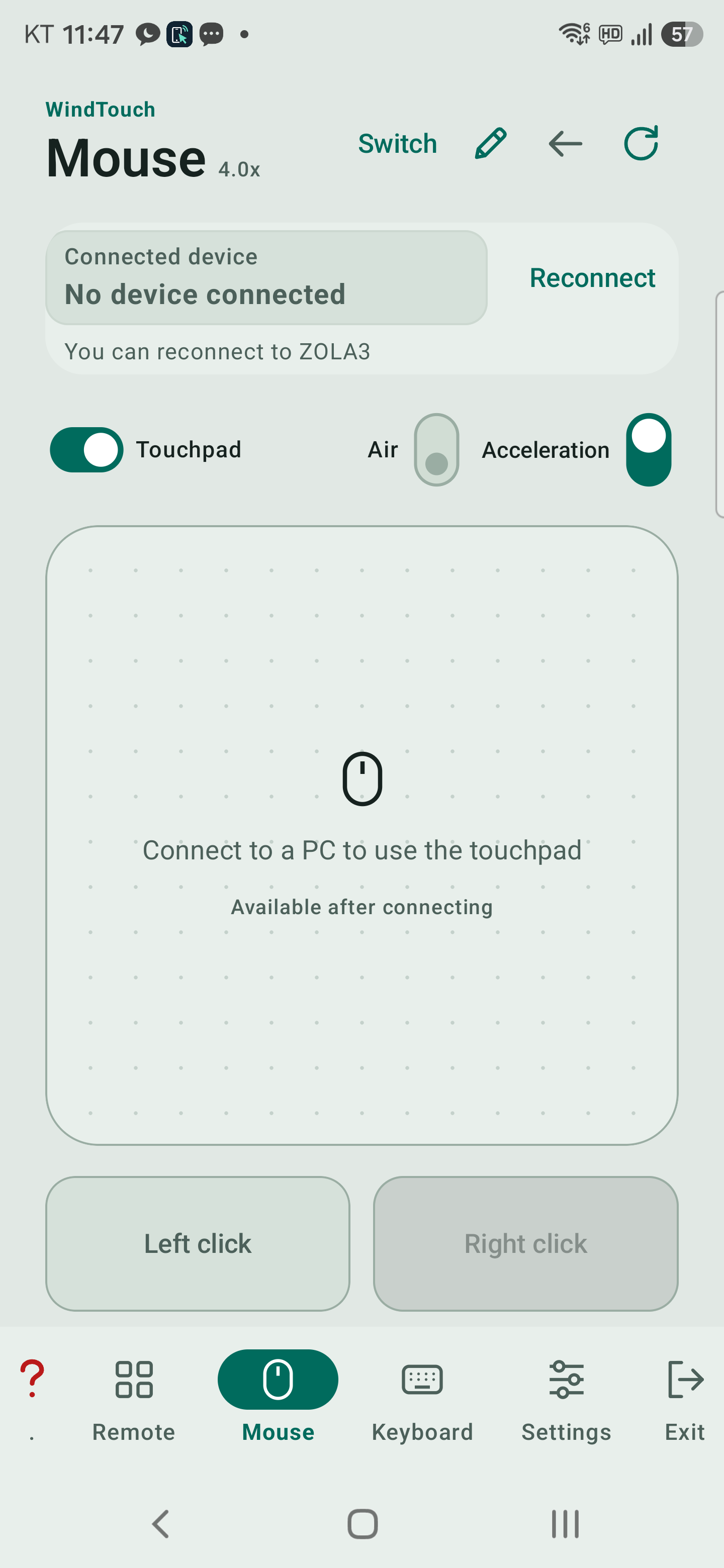
Air requires a supported rotation sensor and a Bluetooth input connection.
Air locks pad touch to reduce accidental input.
Tap the center lock to turn Air off and unlock touch.
The Acceleration control changes to Pages / Buttons when Air is on.
On selects Pages; off selects Buttons.
Small-motion filtering and click-time pointer freezing help reduce hand shake.
| Mode / action | How to use the volume buttons |
|---|---|
| Buttons | In the default layout, volume + is left click and volume − is right click. Their roles follow the handedness and PC primary-button settings. |
| Click / drag | Release the primary-click button before 0.7 seconds for a click. Press and release twice quickly for a double-click. Hold for at least 0.7 seconds, then move to drag. Release to drop. |
| Wheel | Briefly press and release the secondary button for a secondary click. Hold for at least 0.7 seconds and tilt up or down to scroll. Release to stop scrolling. |
| Pages | Volume + sends Page Down; volume − sends Page Up. Select the presentation window on the PC first. |
Double-click recognition and page-key behavior also depend on the PC and application.
Test in the actual presentation program before presenting.
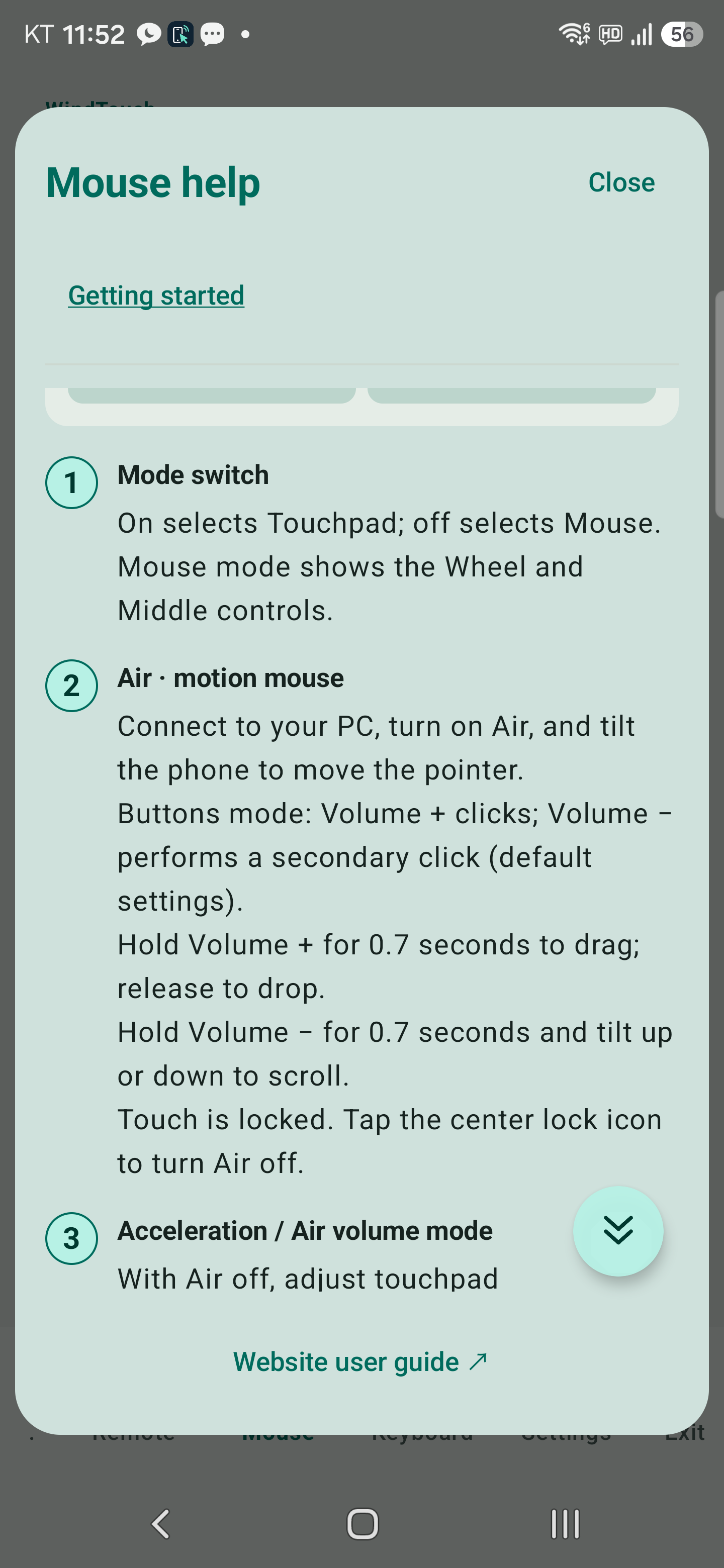
Switch to Buttons when you need to click.
Keep the Mouse tab open during the presentation.
Connect over Bluetooth and select the destination document or search field on the PC.
Choose the appropriate Win / Mac setting in WindTouch.
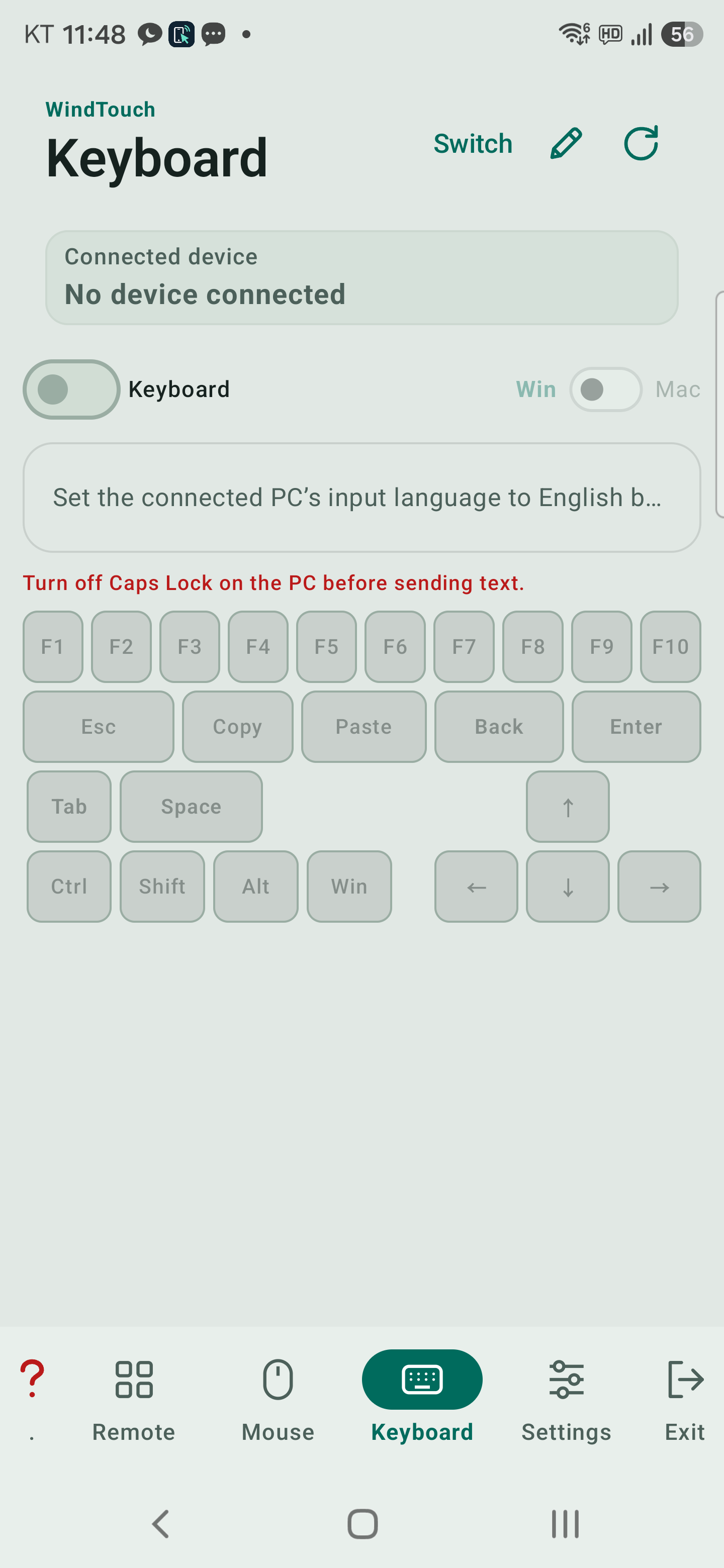
The app cannot read the PC’s active input language.
Start with the PC input method in English (A / ABC).
Automatic Korean/English switching uses that starting state.
If needed, show the Kor / Eng key in Settings → Keyboard.
In Keyboard mode, hold it to request Hanja conversion candidates on Windows.
Support depends on the PC input method and input field.
Use the microphone in Send text mode, review the recognized words, then send.
The app requests an approximately three-second pause allowance.
The speech service controls the actual timeout and recognition quality.
Paste text copied on the phone into the input box before sending.
The auxiliary Copy / Paste keys act on the PC clipboard.
In Send text mode, unsent text is temporarily kept when the app moves to the background.
If a draft is available, use Load to bring it back.
Keep reusable text in Custom controls → Saved phrases.
The top cards show the connection type, status and device name.
Choose Wi-Fi or Bluetooth in Switch, not on the remote panel.
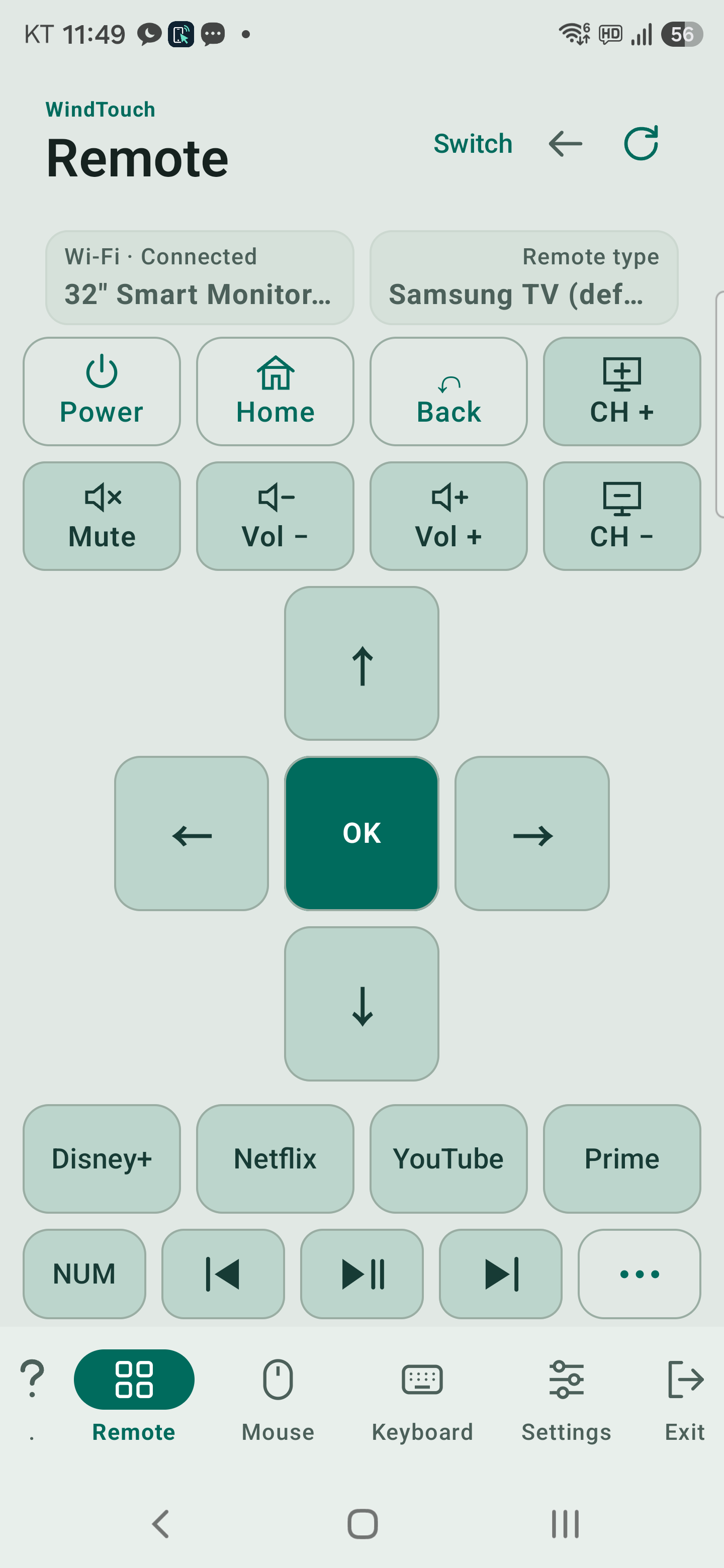
Connect to the box to control its channels and apps.
TV volume and power may not be available through the box.
A physical remote may use IR for these functions; WindTouch does not reproduce those IR signals.
Turning the TV off may also stop its Wi-Fi connection.
For supported devices, WindTouch attempts wake-up using a saved network MAC address.
Success depends on network standby settings and the wired/wireless interface.
A Bluetooth MAC is not the network wake-up address.
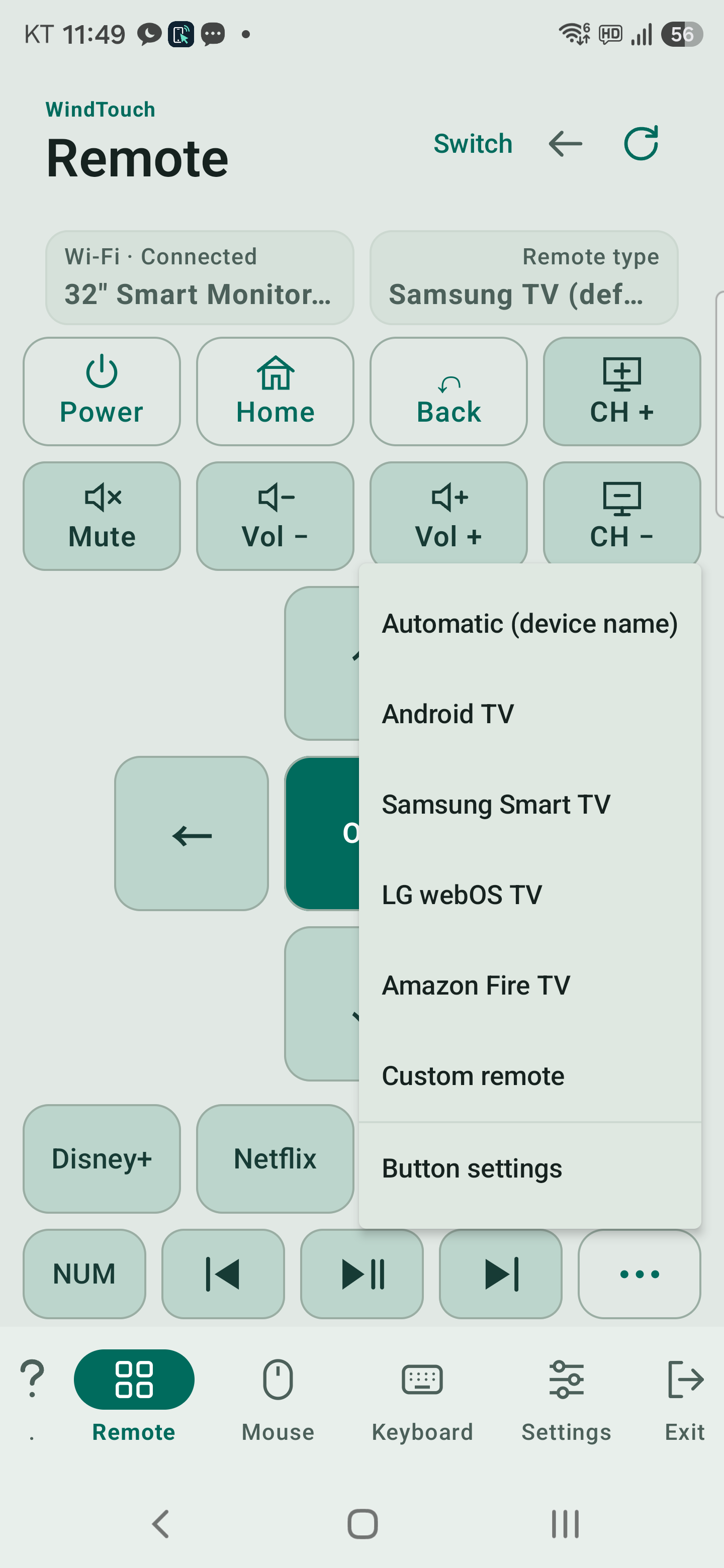
Use Automatic or the type appropriate to your device.
The available profiles include Samsung, Android TV, LG webOS, Amazon Fire TV and Custom.
Button settings is available for Wi-Fi control.
Use the Custom remote to change ordinary Wi-Fi commands.
Default profiles choose commands for the TV protocol automatically.
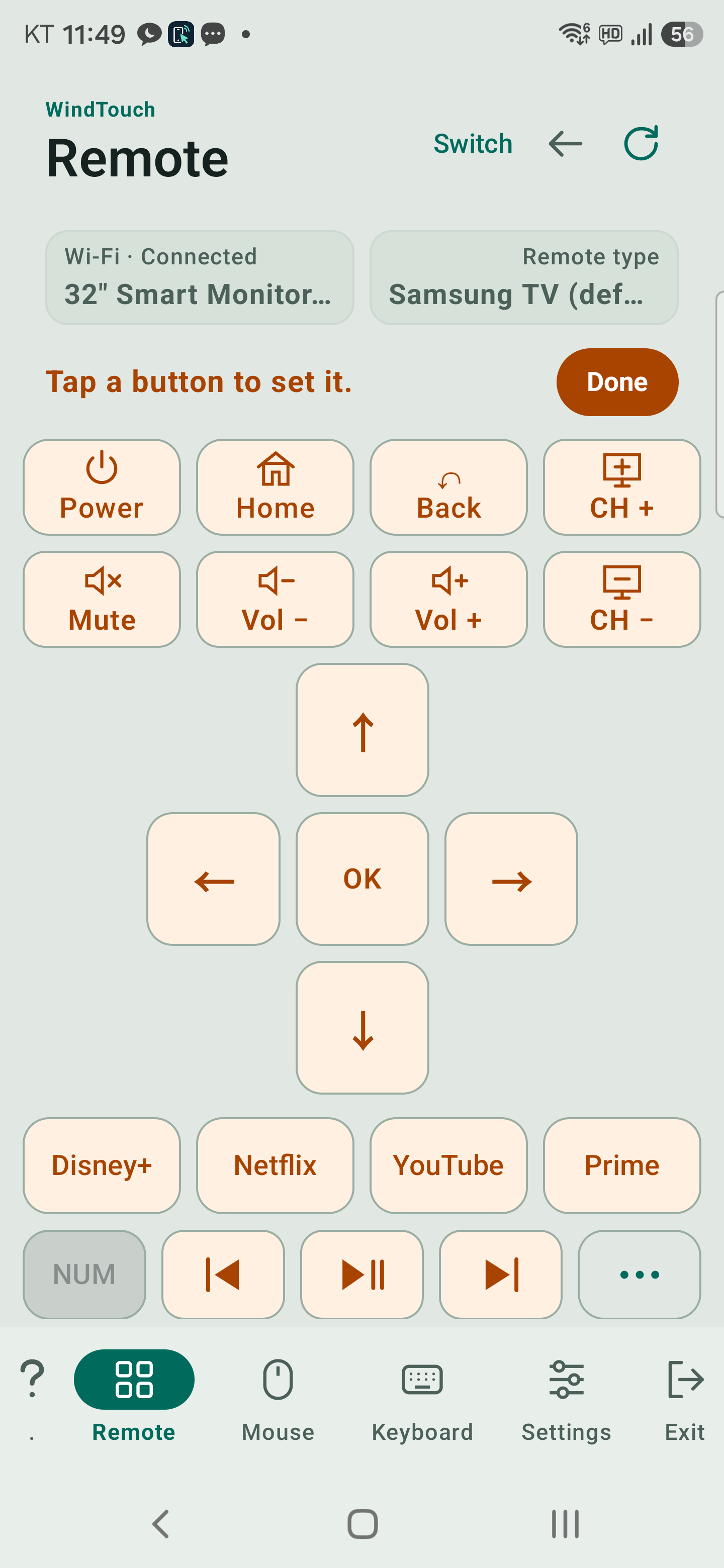
In Button settings mode, tap an app button to open the app picker.
Reload refreshes its list.
Select an app, choose Test, then Works · Save only after checking that it opens.
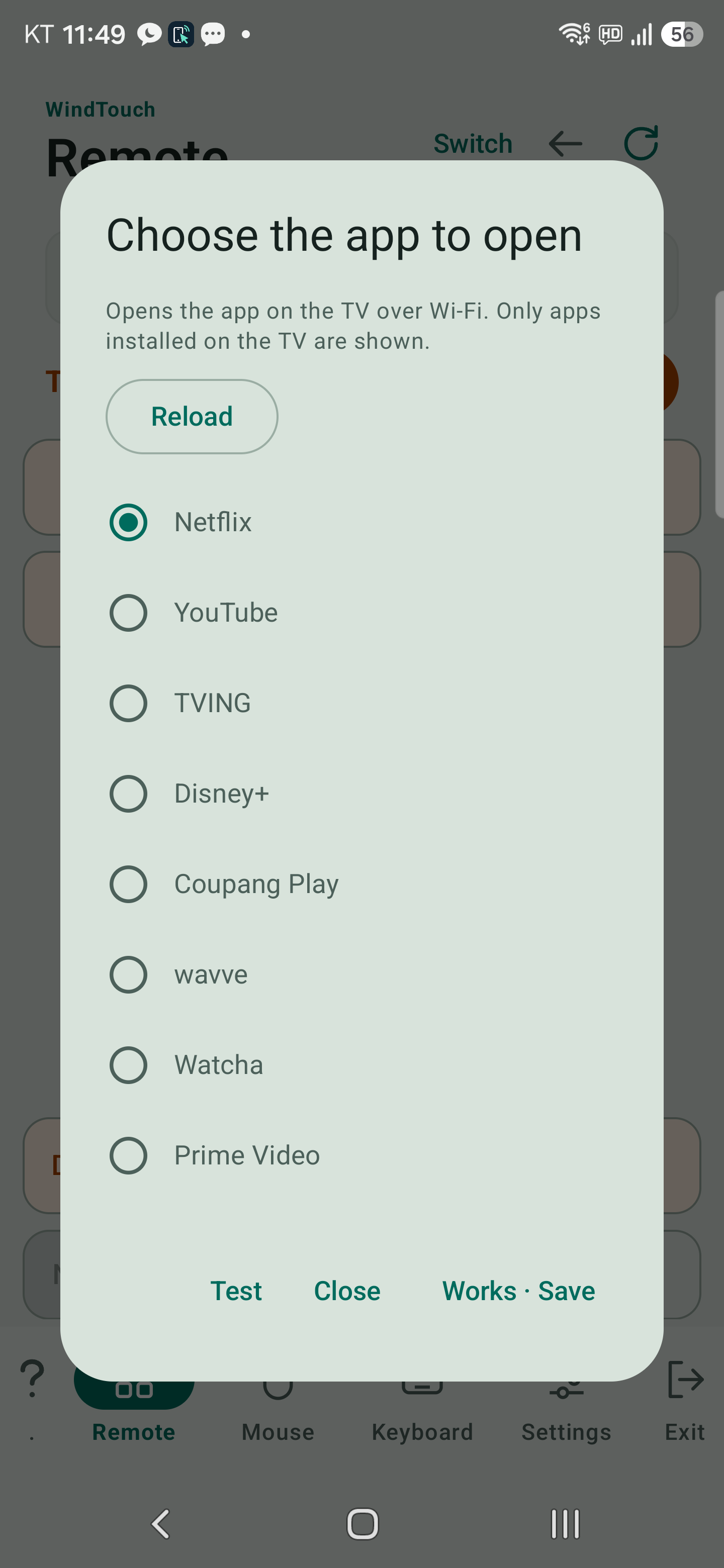
If the TV does not return its list, an explanatory message and candidate apps may appear.
A candidate is not proof that the app is installed or can launch.
Turn the TV on, check the connection and try Reload.
Hold arrows, volume or channel buttons for repeat/long-press commands.
The result depends on the device and active app.
Use the top rotation button for landscape controls.
In Settings → Manage remotes, choose up to seven entries for the … menu.
You can rename entries.
Visible profiles and per-TV button overrides are separate settings.
A normal update that keeps app data preserves your settings.
Uninstalling or clearing app data can remove saved Wi-Fi registrations and button settings.
They are not automatically transferred to another phone.
Importing remote JSON files from the old PC scanner is no longer offered.
Previously imported entries may remain available.
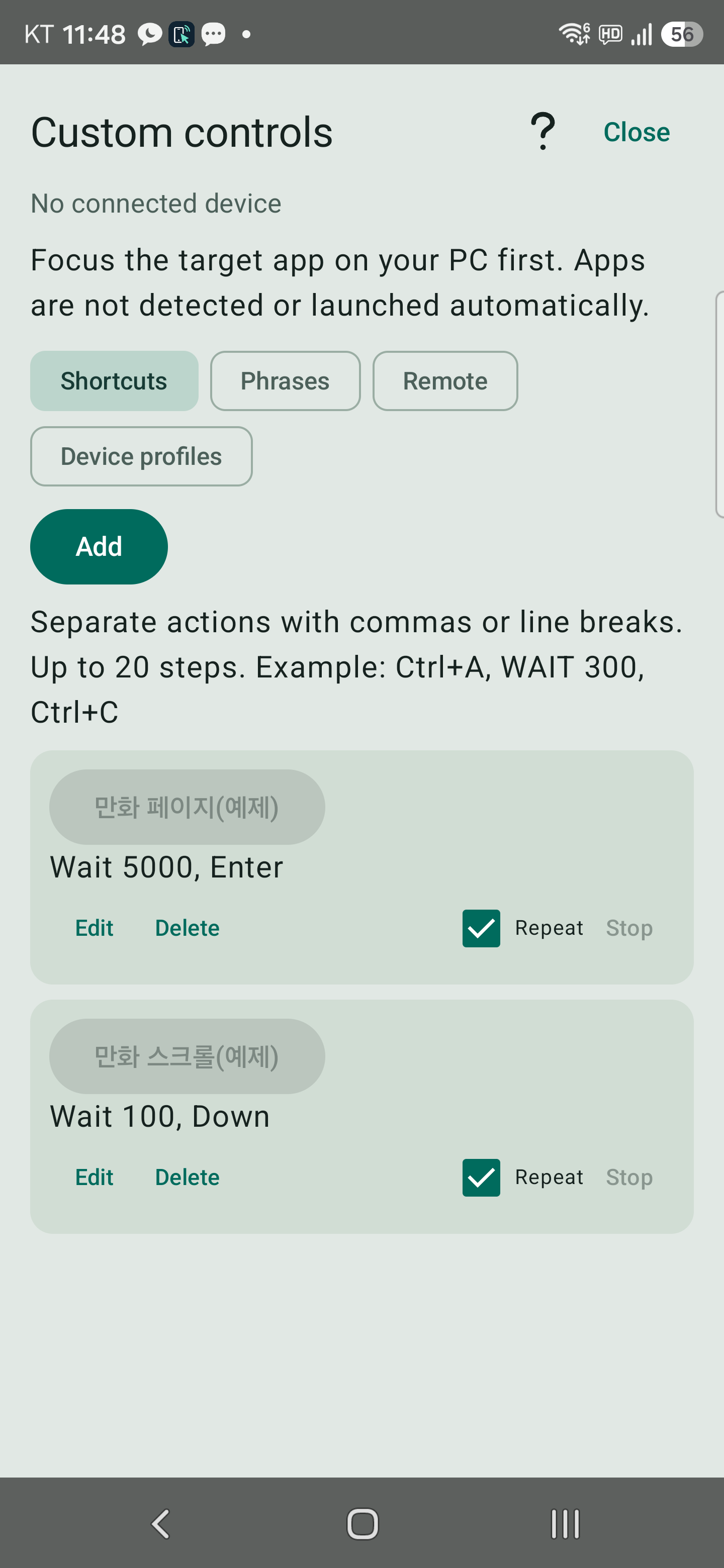
Open the pencil in the top bar or Settings → Custom controls. Shortcuts, saved phrases, custom remotes and device profiles require premium access. Check the connected device and target window before running an action.
Wait 5000, Enter waits 5 seconds, then sends Enter. Wait uses milliseconds; Wait 300 is 0.3 seconds.The comic-page example uses Wait 5000, Enter; the comic-scroll example uses Wait 100, Down. Your viewer must accept those keys. Transmission adds time, so the actual interval can exceed the Wait value.
Repeating stops when you close Custom controls, put WindTouch in the background, disconnect, switch devices or lose premium access. Wait pauses an active sequence; it does not schedule an action for a time of day.
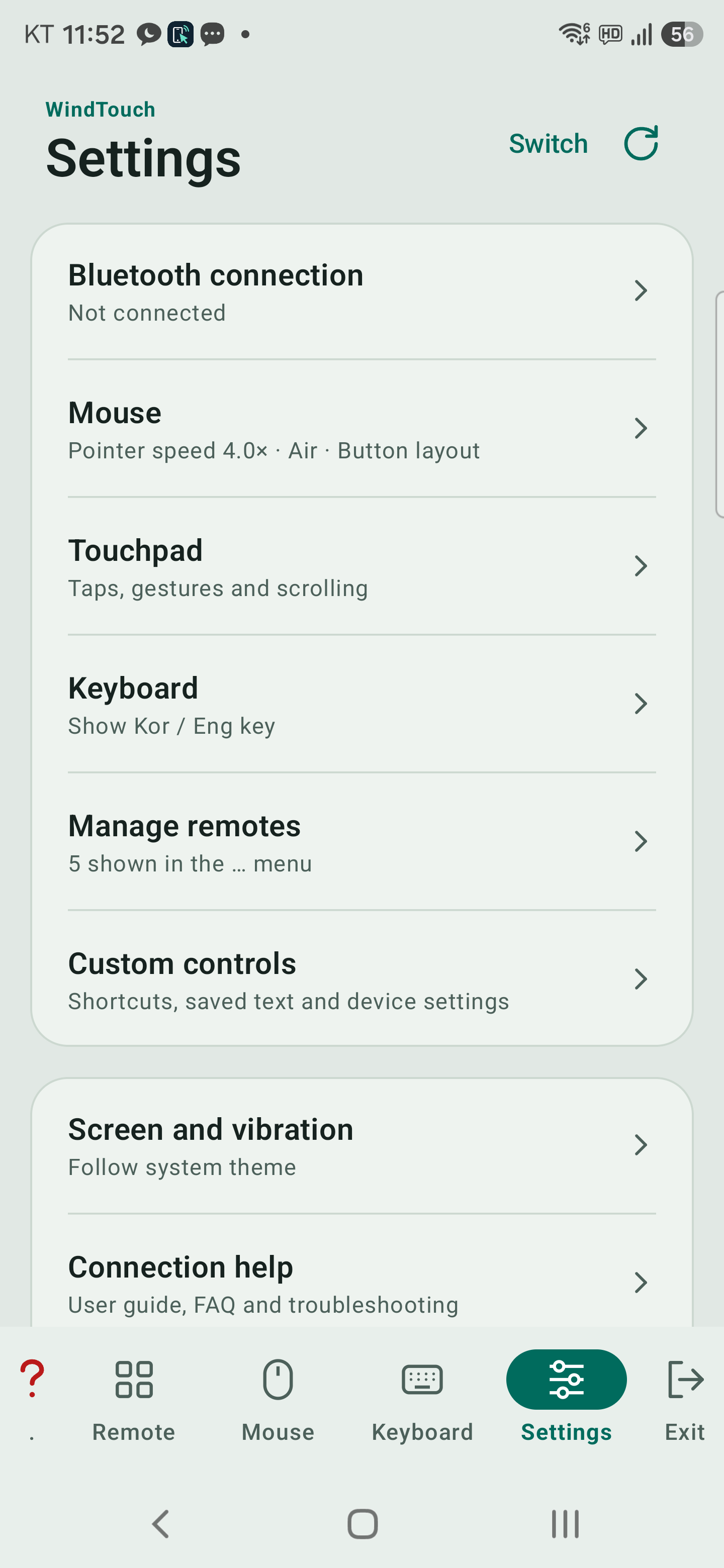
Settings uses a simple list. Tap a row to open a separate page; use Back at the top or Android’s Back action to return. Getting started is now a link at the top of each ? help window.
| Menu | What you can do |
|---|---|
| Bluetooth connection | Check Bluetooth/HID state, reconnect, discover devices or make the phone visible to TV/PC |
| Mouse | Pointer speed, Air, left-handed layout and the connected PC’s primary-button setting |
| Touchpad | Tap sensitivity, one-finger tap, two-finger click/scroll, scroll reversal, zoom and three-finger gestures |
| Keyboard | Show or hide the Kor / Eng key; this section is shown in the English interface |
| Manage remotes | Select up to 7 remotes for the … menu |
| Custom controls | Shortcuts, saved phrases, custom remotes and device profiles |
| Screen and vibration | System/Dark/Light theme, click/movement vibration, keep-screen-on and hiding the help button |
| Connection help | User guide · Help, FAQ, QnA, permissions and connection checks, Activity and errors |
| App information | Version, privacy policy, purchases/license and developer details |
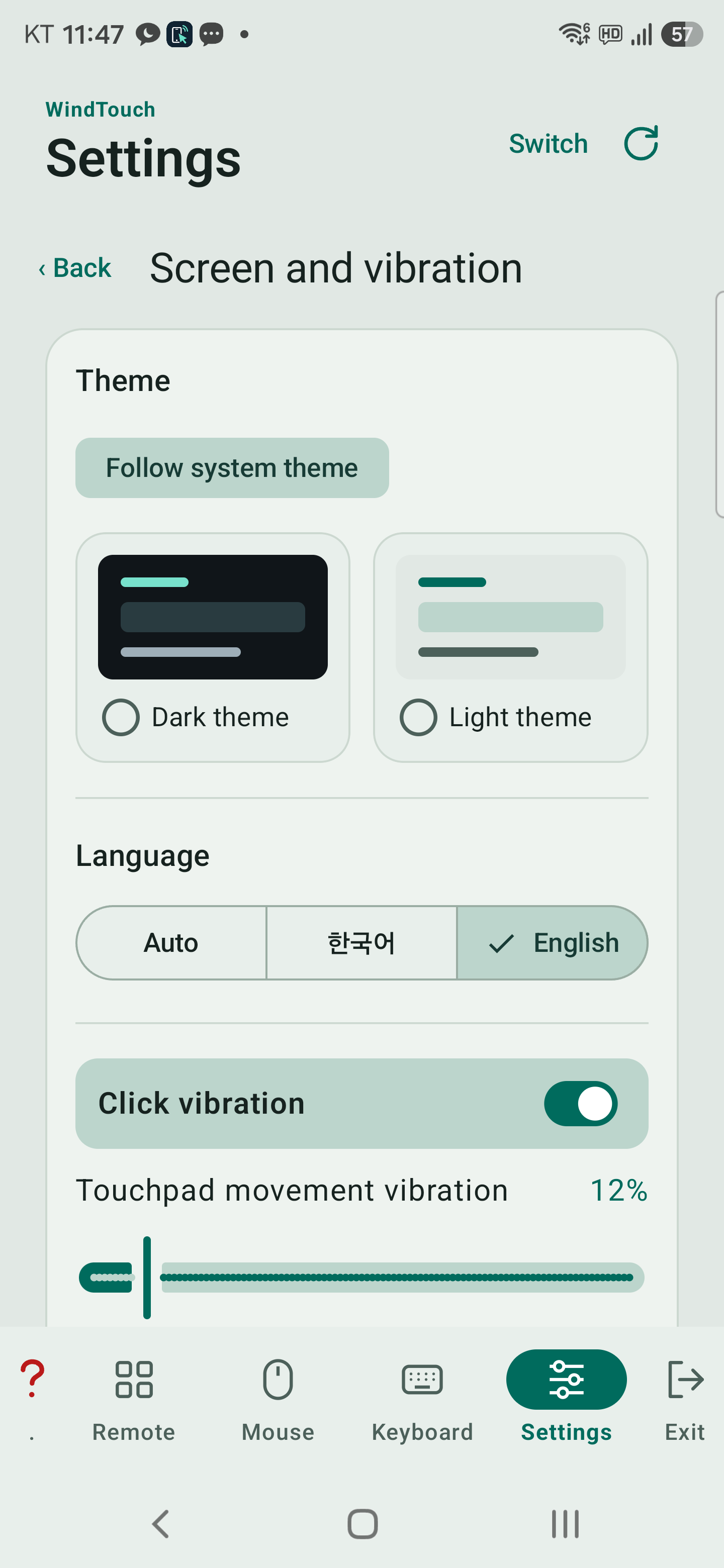
Open Settings → Screen and vibration → Theme and choose Follow system theme, Dark theme or Light theme.
A fresh installation follows the system theme. Light theme uses a subdued pale background with distinct buttons and selected-tab highlights. Your choice is kept for the next launch.
Open Settings → Touchpad to adjust tap sensitivity and enable individual gestures. Zoom speed ranges from 0.5× to 3.0×. Zoom and three-finger actions require premium access.
In Screen and vibration, adjust click and movement vibration. Movement strength ranges from 0 to 100%, with a duration of 10–80 ms. Fresh-install defaults are 12% and 25 ms; 0% disables movement vibration. The feel depends on the phone’s hardware and how you hold it.
Enable the hide-help-button setting in Screen and vibration to hide the ? icon. You can still open Connection help → User guide · Help. FAQ and QnA are also under Connection help. Web pages require internet access and a browser.
When reporting a problem, include the version from App information, the phone and target models, and the steps to reproduce it. Check Connection help → Activity and errors for connection and transmission details.
Connection maintenance is still subject to Android battery restrictions.
After approximately 30 minutes continuously in the background, the app exits.
Returning to the app cancels that pending exit.
Basic mouse control, composed-text sending, the remote and number pad are free. Premium includes Touchpad/wheel acceleration and inertia, Live typing, zoom and three-finger gestures, and Custom controls.
Open Settings → App information → Purchase to check trial and purchase access. The 3-day free trial starts automatically when you first open the app after installation or an update to a newer version. Each newer version grants a fresh 72 consecutive hours, including time when the app is closed. Reopening or installing the same version over the existing app does not extend the trial. There is no automatic charge.
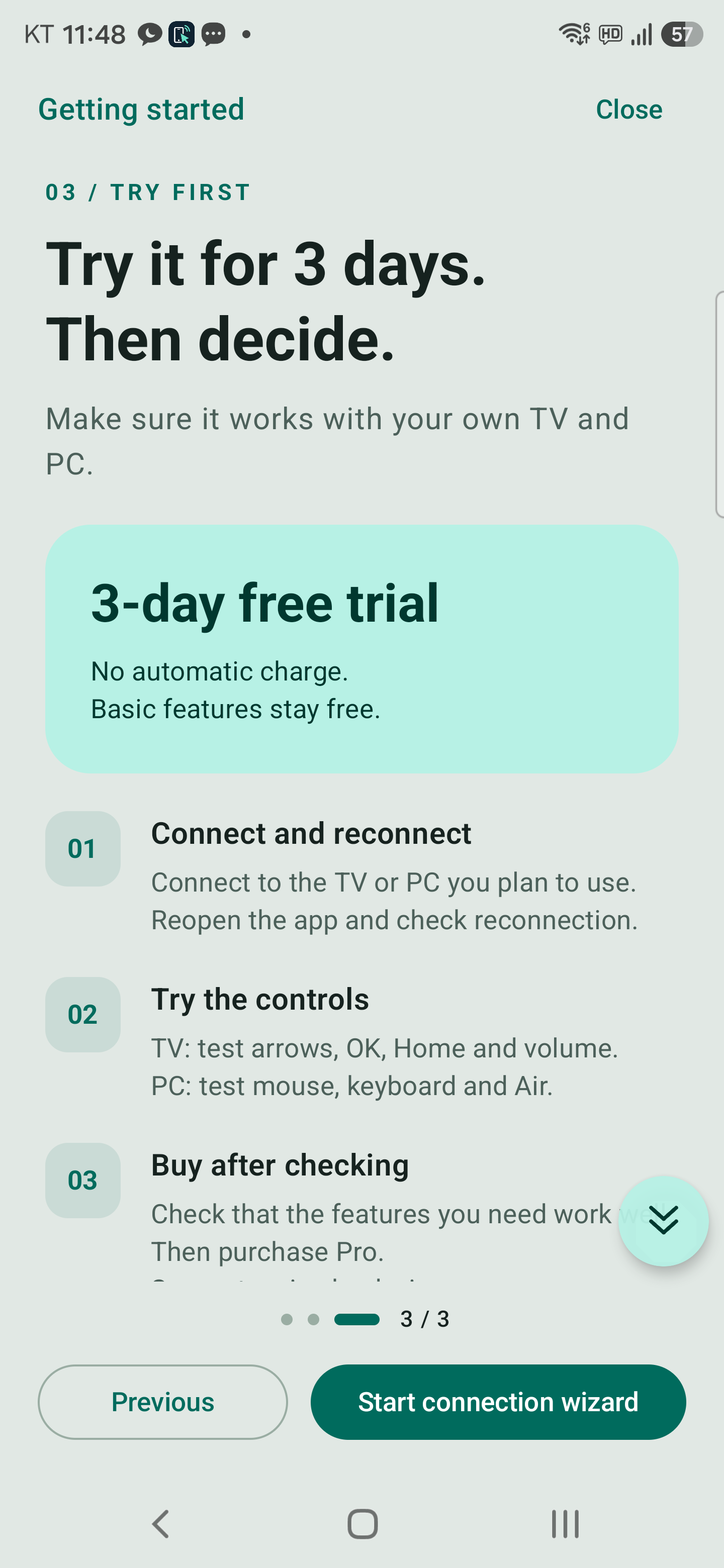
To continue using premium features, check the price and confirm the one-time purchase in Google Play. Use Restore purchases with the original purchasing account; restoring does not charge again. Verification requires internet access. Verified premium access can be used offline for up to 7 days, after which you need to connect and verify again.
Test your TV’s compatibility during the trial. Updating the app and restoring a purchase are separate operations. Personal remote files are not automatically transferred to another phone.
Updated 2026-10-25 for WindTouch 0.9.79. Start with your connection method and the step that fails.
Updated connection and usage videos · Contact support
Check the Google account in Play Store and how the app was installed.
For a test release, use an account enrolled in that test.
A directly installed APK may have a different signature from the store app.
Check the error before uninstalling.
Record shortcuts, saved phrases and per-device settings before removing the app or its data.
Open question-mark Help on the current screen.
Select Getting started at the top of the help window.
A down arrow at the lower right indicates more content below.
Choose the app language and theme in Settings.
Follow the system theme or choose light or dark.
Names and text you saved yourself are not automatically translated.
Turn on Bluetooth on the PC and phone.
Open the device selector at the top of the app and select a registered PC.
For a new PC, choose Find TV/PC from phone.
On Windows, open Settings → Bluetooth & devices → Add device → Bluetooth.
Approve the matching PIN on both devices.
Move on the pad to verify actual pointer input.
Keep the target’s Bluetooth input-device pairing screen open.
Alternatively, make your phone visible to TV/PC and select it from the target.
On a TV, use keyboard/input-device pairing rather than speaker pairing.
If records are stale, remove only this pairing on both sides and pair again.
Support for a regular keyboard does not guarantee support for a phone acting as a HID device.
Pairing and an active HID input connection are different states.
Select the registered PC and check the app’s input-connection status.
Wake the PC if it is asleep.
If connecting from phone Bluetooth settings works but the app does not, report that difference with the error log.
The PC/TV-only switch filters both registered devices and discovery.
Temporarily turn it off if a PC is misclassified and hidden.
Being listed does not mean every Bluetooth device can accept remote input.
Check that Bluetooth is on and Nearby devices permission is granted.
Use Bluetooth connection recovery when it appears for a recovery condition.
If HID still does not initialize, restart the phone and check again.
Wi-Fi TV setup is independent of Bluetooth readiness.
Check phone battery restrictions and connection-maintenance settings.
The app is designed to exit after about 30 continuous minutes in the background.
Reopen it, wake the PC and select the registered device.
For a powered-off TV, also check its network standby settings.
Bluetooth input and audio are separate connections.
Check whether only input fails or audio and other Bluetooth devices stop too.
Check system updates on the phone and PC and the PC Bluetooth driver.
An S25 case improved after a system update; that does not establish the cause for every device.
Report the reproduction steps and device details rather than removing unrelated speaker pairings.
Long-press the device in the connection screen.
Choose Delete in the confirmation dialog.
Check the target PC/TV separately for remaining pairing or approval records.
Bluetooth pairings and Wi-Fi approval lists may be separate.
No. Wi-Fi is recommended for supported TVs and set-top boxes.
Wi-Fi setup can proceed even when Bluetooth is off or HID registration fails.
For channels from an HDMI set-top box, connect to that box.
Infrared remotes and external USB IR transmitters are not supported.
Connect the phone and powered-on TV to the same router.
Guest or public networks may block device communication or discovery.
Use manual selection and enter the IP shown in TV settings.
A public IP alone does not guarantee access.
The address must be reachable and a supported remote-control protocol must respond.
Use the physical TV remote to approve the request on the TV.
Enter the displayed pairing code in the phone app.
A TV administrator password is different from an app pairing code.
After approval, test a direction button and OK.
Some TVs turn off their network interface when powered down.
Check supported mobile wake, network standby or quick-start options.
Wake-up needs a compatible device and the correct network MAC address.
Bluetooth, Ethernet and Wi-Fi MAC addresses are not interchangeable.
Not every TV or set-top box supports network wake-up.
Some remote-control protocols do not expose the network MAC address.
A successful connection does not guarantee automatic MAC discovery.
Check Ethernet or Wi-Fi information in the TV settings.
An IP address, including an IPv6 address beginning with fe80, is not a MAC address.
Each TV or set-top box supports a different set of commands.
Connecting to a box does not guarantee control of the TV’s power or volume.
A physical remote may use infrared and have different capabilities.
Check communication status and actual button behavior separately.
Choose Custom remote in the remote’s three-dot menu.
In Button settings, select a command, test it and then save.
Restore automatic setting returns the button to its default command.
Ordinary command overrides apply only to Custom remote for that TV.
Button settings and OTT buttons are hidden for Bluetooth.
Reload requests the app list again for the connected device.
Even Samsung and LG results depend on the exposed list and permissions.
The current Android TV method offers supported launch candidates, not a complete installed-app inventory.
Reload cannot discover every OTT app automatically.
Test the actual launch before saving.
Wi-Fi commands and app choices are stored per device on the current phone.
They are not automatically synchronized to another phone.
Uninstalling or clearing app data may remove registrations and settings.
A normal update that preserves app data keeps saved settings.
The downloaded remote catalog is separate from saved button overrides.
Refreshing the catalog does not automatically test or replace custom commands.
Turn off the Touchpad switch to use the separate Wheel and Middle controls in Mouse mode.
Check Settings for two-finger gestures in Touchpad mode.
Scrolling and zoom behavior also depend on the PC and target application.
Check whether the PC uses the right mouse button as primary.
If so, enable the app’s right-primary touchpad setting.
Left-handed layout and the PC primary-button setting are different controls.
Check the selected PC and test taps, clicks and dragging.
First check the PC Bluetooth HID input connection.
Air requires a supported rotation sensor.
Tilt or rotate the phone; sliding it without changing orientation is not tracked.
Adjust sensitivity and test with Help closed.
Select Buttons mode in Air.
By default, Volume + is primary click and Volume − is secondary click.
Release the primary button before 0.7 seconds to click; press twice quickly to double-click.
Hold at least 0.7 seconds and move to drag; release to drop.
Button roles follow layout and primary-click settings.
In Buttons mode, hold the secondary button for at least 0.7 seconds and tilt up or down to scroll.
For presentations, turn on Pages mode.
Volume + sends Page Down and Volume − sends Page Up.
Select the presentation window on the PC and keep the Mouse tab open on the phone.
Touch locking prevents accidental presses.
Tap the center lock icon to turn Air off and restore touch control.
Keep the app’s Mouse tab visible when using Air and its volume-button controls.
Check the Bluetooth input connection and the focused PC text field.
Check the PC input language and input method.
Live Keyboard input and composing text before Send to PC are different modes.
There is no separate Finish composition button.
Compare a short text sample in another application.
In Keyboard mode, it requests Hanja conversion candidates from the Windows input method.
It requires a supporting input method and text field.
This long-press action is not offered in Send text mode.
First check that the intended PC is connected.
Select the target program and input field, then test a short action.
Check trial or purchase access for custom features.
Do not share captures containing private phrases or passwords.
It starts automatically on first launch after installation or an update to a higher version.
Each newer version grants 72 consecutive hours, including time with the app closed.
Reopening or installing the same version over itself does not extend it.
Check the status in Settings → App information.
The trial does not automatically charge you.
Restore purchases with the original Google Play purchasing account.
Restoration does not charge again.
Purchase verification requires internet access.
Verified premium access can remain available offline for up to seven days before verification is needed again.
Restoring a purchase does not restore local device or button settings.
Test enrollment and premium access are separate.
Check the remaining trial time and purchase status first.
For a separately issued code, check its validity period and error message.
Do not publish the full code in a support request.
Include the phone model, Android/app version and target PC/TV model.
State whether you use Wi-Fi or Bluetooth and which step fails.
Distinguish pairing, communication connection and actual button response.
Include the exact error and reproduction steps.
Hide passwords, pairing codes, license codes and private text.
Rebuilt with English Galaxy S25 captures. Version 0.9.79, with English narration and on-screen explanations.
3:18
3:18
0:59
0:59
0:52
0:56