WindTouch · PC Remote JSON
Scan a remote on PC and use it on your phone
Read your physical remote and bring its button settings into WindTouch.
Windows 10/11 · x64 · No Python installation needed
Set up your own remote once
Why use the PC scanner?
TVs and set-top boxes can use different button commands. If some default WindTouch buttons do not work, this tool can read your physical remote on a PC and save the inputs as button settings for your phone.
You can also rename and resize the TVING, Netflix and YouTube positions. For example, rename Netflix to another service and assign the input from that service’s physical remote button. Changing a label alone does not launch a TV app. The TV must accept the assigned launch command.
First try the methods available in on your phone. Use the PC scanner when you want to register inputs from your physical remote.
- Scan on PCPhysical remote → PC
- Save and transferJSON file → phone
- Select in the appWindTouch → TV
Once configured, you do not need to leave the PC running. Connect your phone to the TV or set-top box over Bluetooth to use the remote.
1. Prepare and launch
- Use a Bluetooth-equipped Windows 10/11 64-bit PC and a physical Bluetooth remote that can connect to it as an input device.
- Install WindTouch on your phone. Personal remote import requires version 0.9.44 or later; custom button names and widths require 0.9.57 or later.
- Download the PC scanner ZIP, extract it completely, then launch WindTouchRemoteJson.exe. Python and ADB are not required.
- ENG is the default language. The KOR/ENG controls are in the upper-right corner.
On Windows, open Settings → Bluetooth & devices → Add device → Bluetooth and connect the physical remote. Follow its manufacturer’s instructions to enter pairing mode. Menu names may vary by Windows version.
This is not the phone-to-PC pairing step. Pairing the remote to the PC may disconnect it from the TV; pair it back to the TV afterwards if necessary.
Infrared-only remotes cannot be scanned. Some Bluetooth remotes use proprietary protocols and cannot pair with a PC or expose readable inputs. A successful scan does not guarantee that the target TV will respond.
2. Select a device, press a button, assign
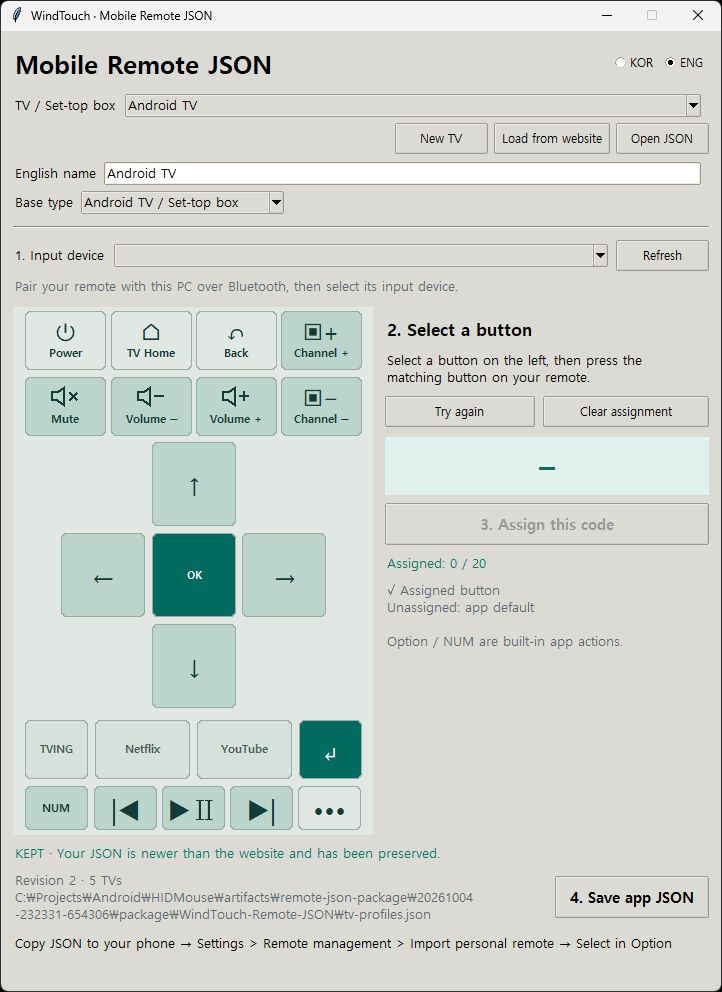
Open the image to view it at full size.
- Choose the profile in TV / Set-top box.
If it is not listed, click New TV, enter a recognizable name and choose the base type. You can enter just one language’s name; an empty name in the other language uses the same text.
- Choose your physical remote in 1. Input device.
If it is missing, check the Windows Bluetooth connection, then click Refresh. Selecting a device prepares reception.
- Select the on-screen button you want to configure.
For example, select Volume +, then briefly press Volume + once on the physical remote. Select the on-screen button first.
- Check the candidate and click 3. Assign this code.
The scanner distinguishes repeated and released inputs to pick a candidate. If the result is ambiguous or unsupported, it does not assign a code. Follow the message and use Try again to repeat the scan.
- Repeat for the other buttons.
A ✓ marks an assigned button. To remove an incorrect assignment, select it and click Clear assignment. Unassigned buttons use the app defaults. […] and NUM are built-in app controls and cannot be assigned remote codes.
If the remote appears as several input devices, try its other entries. Scanning does not suppress normal Windows actions such as changing the PC volume.
3. Customize labels and widths, then save
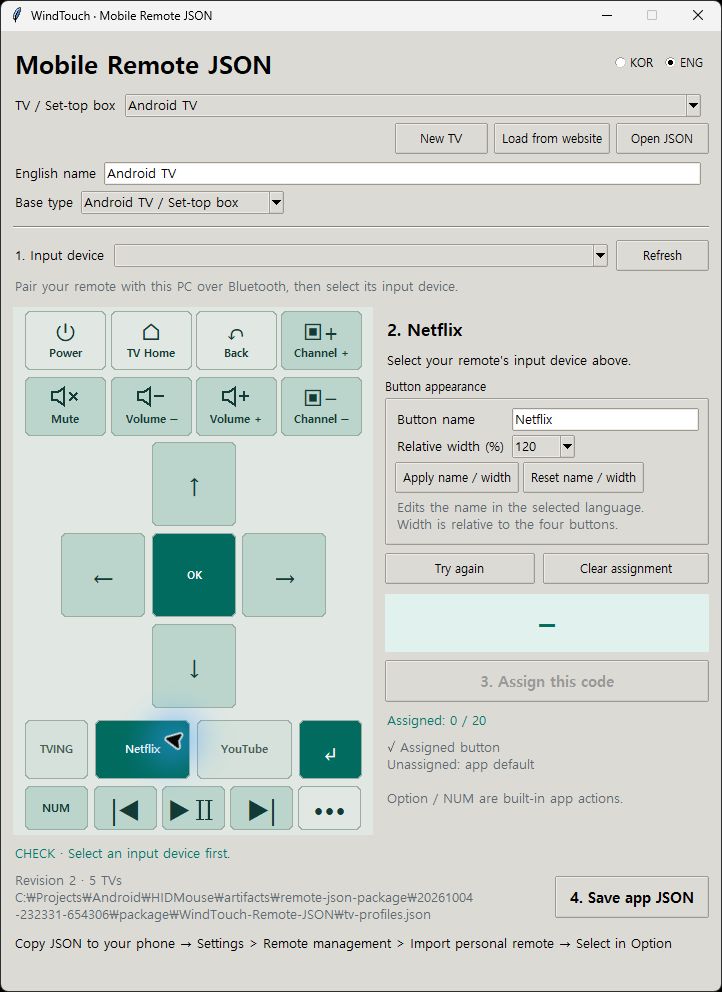
The empty code box means no input has been received yet.
- Select TVING, Netflix or YouTube.
Change Button name and Relative width (%), then click Apply name / width. Names are edited for the currently selected KOR/ENG language. Switch languages to enter separate translations.
- Set the label and the command separately.
Renaming or resizing a button does not create an app-launch command. Scan and assign the actual button input as described above.
- Click 4. Save app JSON.
The default filename is
tv-profiles.json. Save it somewhere easy to find. The JSON is a settings file containing remote names, button codes and appearance.
Transfer the .json file to your phone.
The Windows EXE and distribution ZIP are not Android installers.
One JSON file can contain several remote profiles. Choose the one you need when importing it on the phone. Website refreshes preserve personal and edited profiles on the PC; save the JSON to keep the merged result.
4. Transfer the JSON to your phone
A USB cable makes it easy to choose where the file is saved.
- Unlock the phone and connect it to the PC with USB.
Open the USB notification on your phone and choose File transfer. Some devices call it “File transfer / Android Auto”.
- Open the phone in Windows File Explorer.
Copy your JSON to This PC → your phone → Internal storage → Download. Exact folder names vary by device.
- Check that the file is on the phone.
Use a file app, such as Samsung My Files, to check the Downloads folder. You do not need to edit the JSON or open it as text. Select it from inside WindTouch in the next step.
Can I use email or a messenger instead?
Yes. Send it to yourself as a file attachment and download it on the phone. Pasting JSON text into a message or sending a screenshot will not work. Keep the .json extension. These services receive the file you send; use USB if you do not want to upload it.
Personal remotes can be imported directly on your phone. You do not need to upload them to the Windsoft website or request approval.
5. Import in WindTouch and use on the TV
Settings → Manage remotes → Import personal remote
- Tap Import personal remote and choose the JSON file.
Select
tv-profiles.json, or the filename you chose, in the phone’s Downloads folder. - Choose the remote inside the file.
The first selected item may not be your custom profile. Select the correct item, check My remote name, then tap Register.
- Check the desired item under My remotes.
A new item is checked automatically when space is available. Website and personal profiles together can show up to 7 items in […]. If all 7 are selected, uncheck another first. Unchecking only hides the item from the menu.
- Connect your phone to the intended TV or set-top box over Bluetooth.
Select the target using Connect at the top of WindTouch. Connection guide
- Open Remote → […] and select the newly registered name.
Importing or checking an item alone does not apply it to the connected TV. Select it in […], then test the buttons you need, such as volume and navigation. Confirm the expected response on the TV.
6. Updates, backups and troubleshooting
Will changes on the PC update my phone automatically?
No. Save the edited JSON, transfer it again, and use Import personal remote again. Each import creates an independent copy on the phone. It does not overwrite an existing profile, even if the names match.
Use a distinguishable name such as “Living room TV revised”, select it in […], and test it. Remove the old personal item only after confirming the new one works.
The file cannot be imported.
Use a JSON file of 64KB or less created with Save app JSON. ZIP, EXE, CSV and screenshot files cannot be imported. Selecting an invalid file does not change existing settings.
My imported remote is missing from […].
Check it under My remotes in Settings → Manage remotes. If 7 items are already selected, uncheck one before selecting the new item. Menu selection is saved automatically.
No input appears, or Assign this code stays disabled.
Check that the physical remote is connected to Windows as an input device. Refresh and select the correct device. Select an on-screen button before briefly pressing the physical button. Ambiguous or proprietary inputs are not assigned automatically. Infrared signals cannot be received.
The code is assigned, but the TV does not respond.
Check the Bluetooth target and choose the intended personal profile in […]. Supported JSON codes override family defaults, but a TV may not support every command. Update and re-import your JSON when needed.
Are settings kept after an update or reinstall?
A normal app update without uninstalling keeps your personal remotes and settings. Website catalog updates do not change personal copies on the phone. Uninstalling the app or clearing its data may erase them, so keep your original PC JSON as a backup. Import it again after reinstalling.
Actual PC application screenshots; instructions checked against WindTouch 0.9.71 source · October 6, 2026. Actual responses and supported buttons depend on the TV.