Connect and switch devices
Your phone as a mouse, keyboard and remote.
Guide updated for 0.9.79 · 24 October 2026
Connect and switch devices
You do not need Bluetooth pairing for Wi-Fi TV control.
If you watch through a set-top box, connect to that box to control its channels and apps.
Connect a TV or streaming box
- Connect the phone and TV/box to the same router.
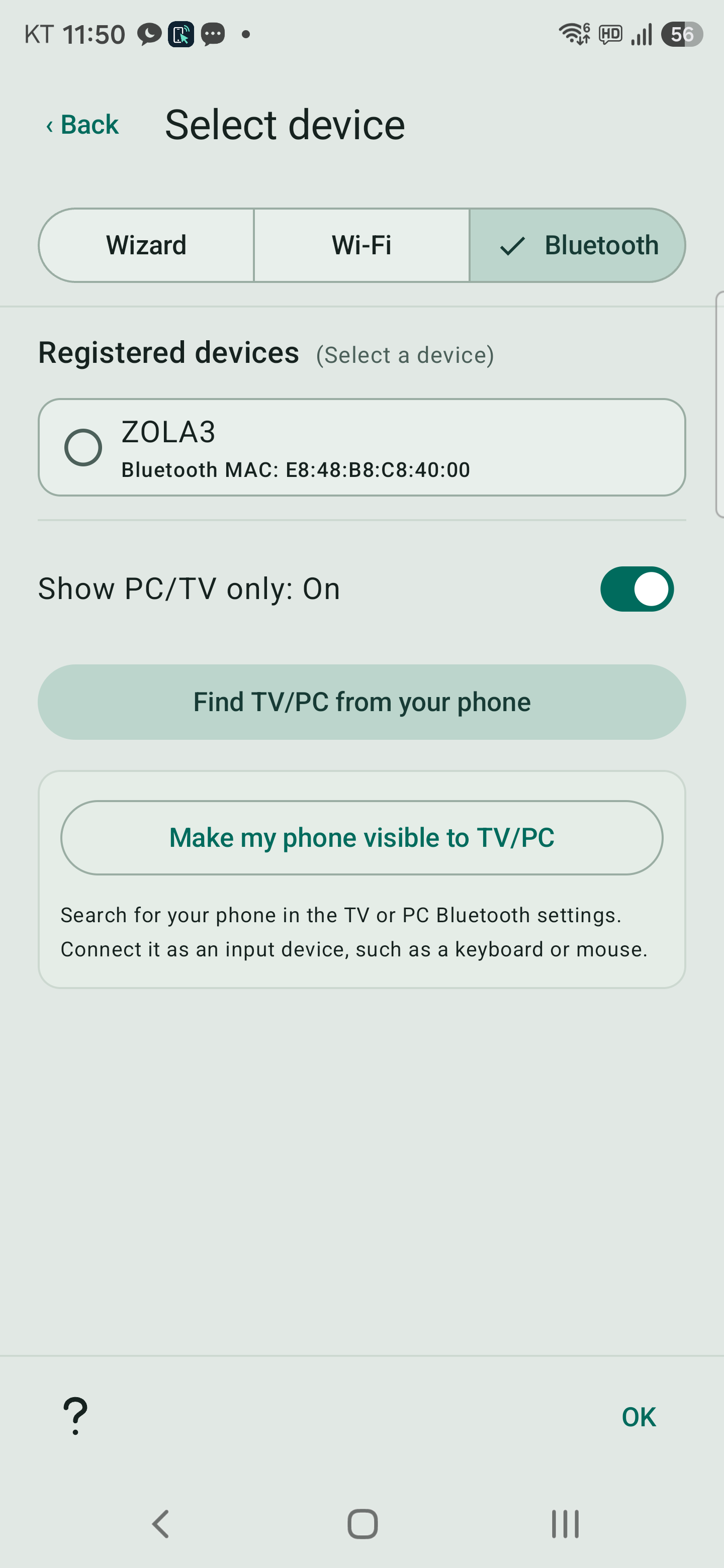
A TV connected by Ethernet can also work when it is reachable on the same network. - Open Remote → Switch → Wizard → TV / set-top box → Find Wi-Fi TV.
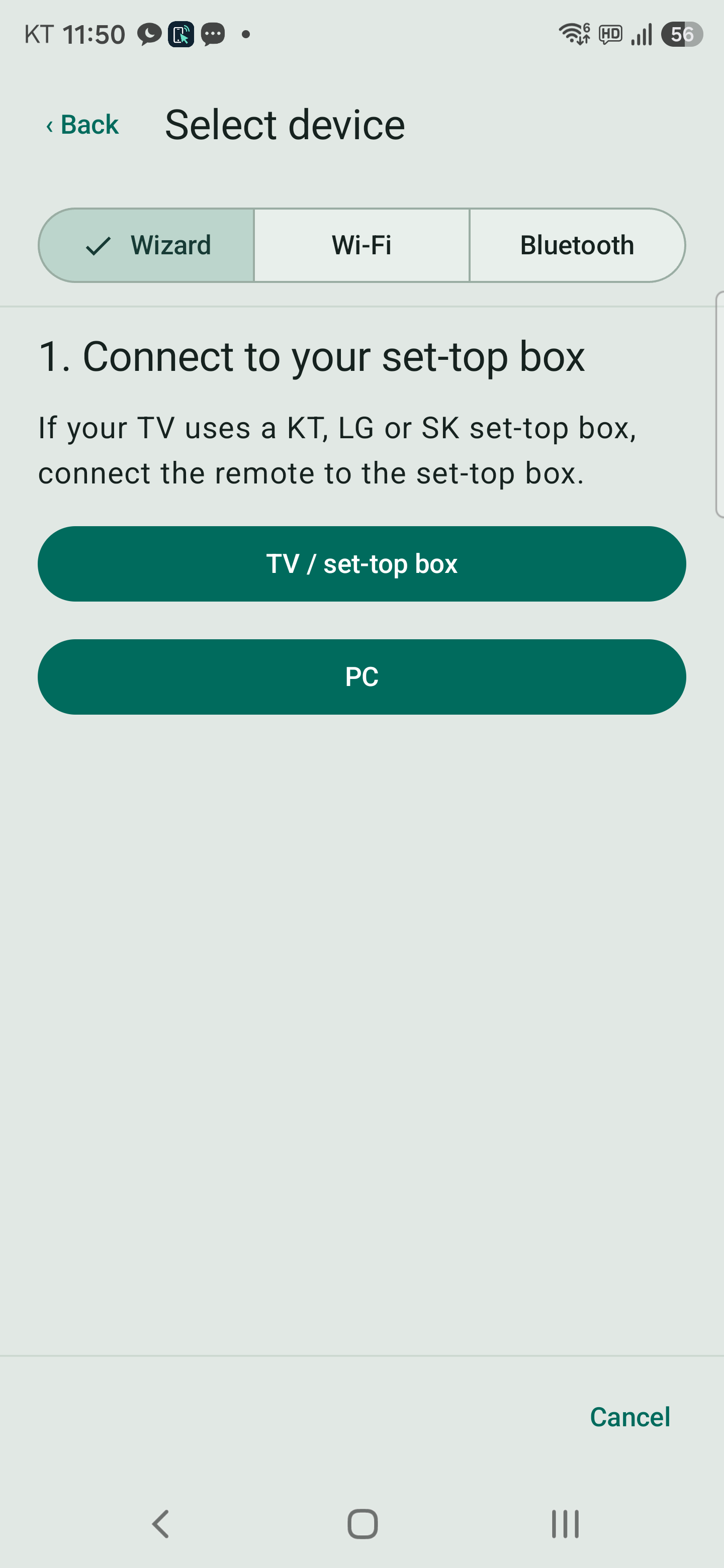
- Tap the discovered device to start connecting.
Use the TV remote to Allow its request, or enter the PIN shown on the TV in WindTouch. - When communication is confirmed, open a menu on the TV and tap Test left arrow.
If the selection moves, choose It works · Finish.
Enter the IP address if discovery fails
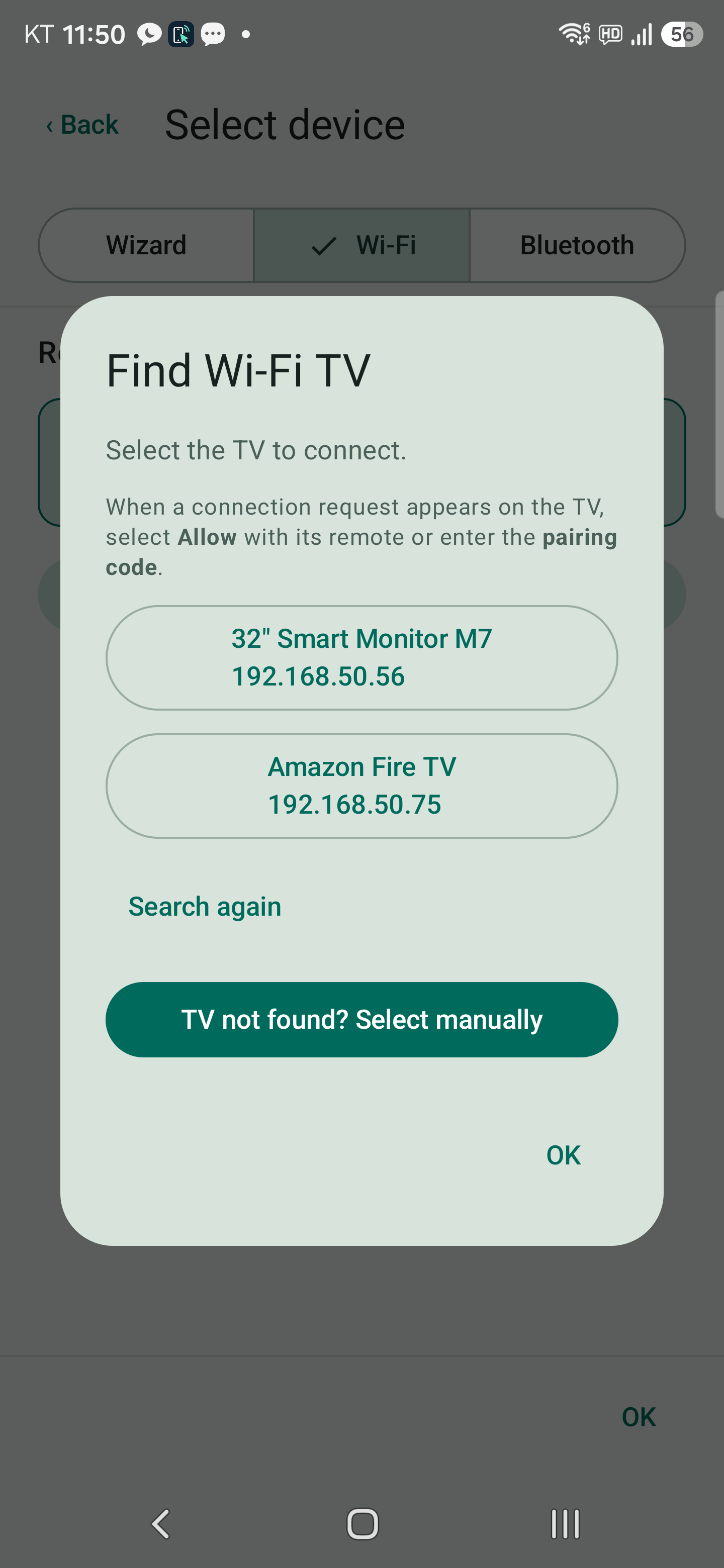
Tap the manual-selection button below the search results.
Find the TV IP address in its network settings.
Enter the address, such as 192.168.0.11, and check the TV at that IP.
Guest and public networks may block discovery or communication between devices.
Entering a public IP does not bypass a firewall or provider restrictions.
The phone still needs a network route to the device.
Connect a PC over Bluetooth
- Enable Bluetooth on the phone and PC.
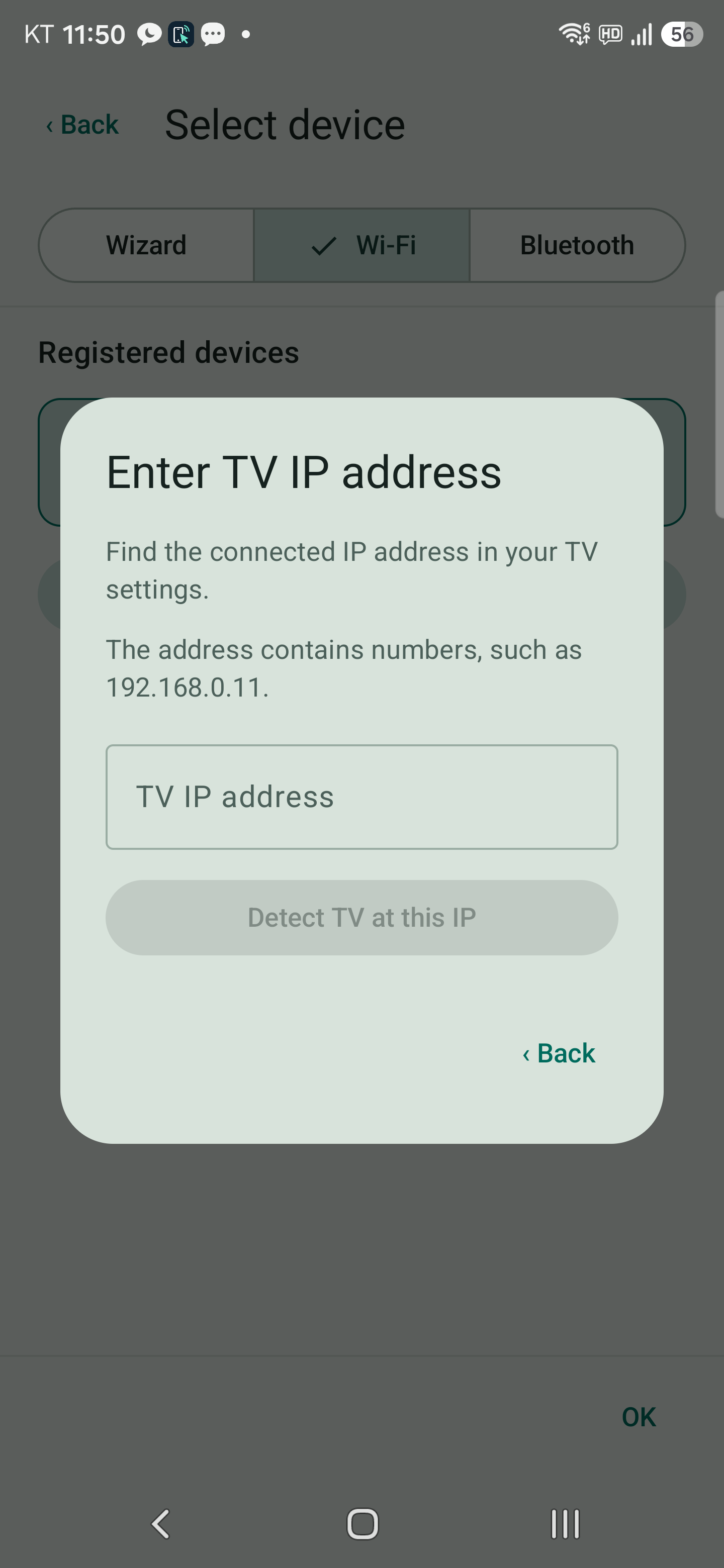
Windows: Settings → Bluetooth & devices → Add device → Bluetooth. - From Mouse or Keyboard, tap Switch → Find TV/PC from your phone and select your PC.
- Confirm matching PINs on both devices.
Wait for the HID input connection after pairing. - Select a document or the desktop on the PC.
Test pointer movement, clicking and a short text entry.
If the PC cannot be found, use Make my phone visible to TV/PC and allow discovery.
Within two minutes, select the phone in the PC’s Bluetooth add screen.
On a TV, use its keyboard/input-device menu, not the speaker/audio menu.
Saved devices and removal
Tap a saved Wi-Fi or Bluetooth item to connect immediately.
The Remote picker remembers the last Wizard / Wi-Fi / Bluetooth tab.
PC/TV only filters both saved devices and discovery results.
Hold an item to open a Delete / Cancel confirmation.
After removing Bluetooth pairing, check for a remaining phone entry on the PC or TV as well.
Switching to a Wi-Fi target disconnects the existing Bluetooth input link.
Do not assume a lost Wi-Fi connection automatically falls back to Bluetooth.
Choose the desired device and connection type using Switch.
Phone audio plays on the TV
Open the TV’s details in the phone’s Bluetooth settings.
Disable an unwanted audio connection and check input-device pairing separately.
Wi-Fi remote control is independent of Bluetooth audio.
Discovery, pairing and mouse/keyboard connection are separate stages.
After approving the PIN, verify actual pointer movement.