Keyboard and Send text
Your phone as a mouse, keyboard and remote.
Guide updated for 0.9.79 · 24 October 2026
Keyboard and Send text
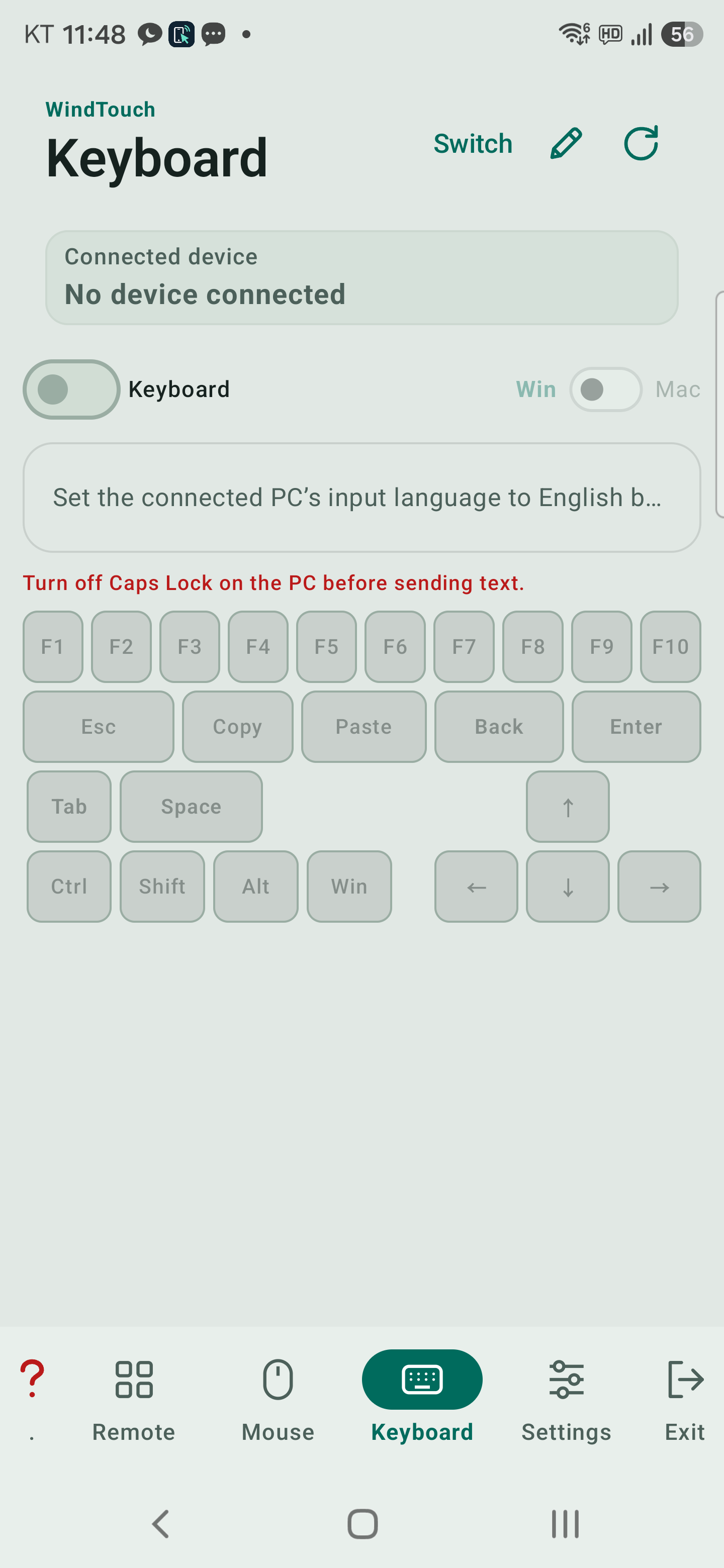
Connect over Bluetooth and select the destination document or search field on the PC.
Choose the appropriate Win / Mac setting in WindTouch.
Keyboard / Send text
- Keyboard: sends typing to the PC immediately.
Live typing requires trial or purchase access. - Send text: compose first, then tap Send to PC.
The input box holds up to 256 characters; split longer text into smaller parts.
Korean, English and Hanja
The app cannot read the PC’s active input language.
Start with the PC input method in English (A / ABC).
Automatic Korean/English switching uses that starting state.
If needed, show the Kor / Eng key in Settings → Keyboard.
In Keyboard mode, hold it to request Hanja conversion candidates on Windows.
Support depends on the PC input method and input field.
Voice input and clipboard
Use the microphone in Send text mode, review the recognized words, then send.
The app requests an approximately three-second pause allowance.
The speech service controls the actual timeout and recognition quality.
Paste text copied on the phone into the input box before sending.
The auxiliary Copy / Paste keys act on the PC clipboard.
Load a previous draft
In Send text mode, unsent text is temporarily kept when the app moves to the background.
If a draft is available, use Load to bring it back.
Keep reusable text in Custom controls → Saved phrases.