Settings, vibration and display
Your phone as a mouse, keyboard and remote.
Guide updated for 0.9.79 · 24 October 2026
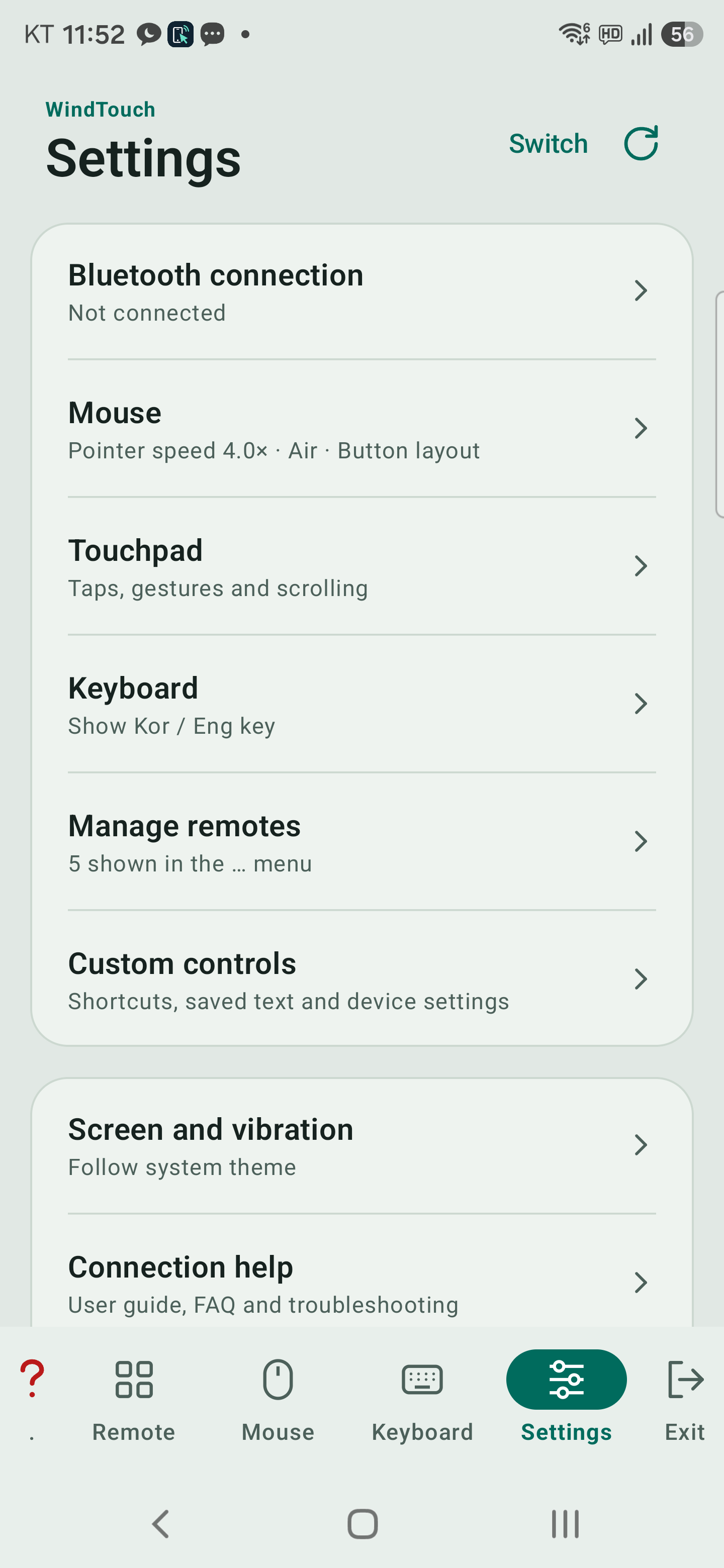
Settings: open the section you need
Settings uses a simple list. Tap a row to open a separate page; use Back at the top or Android’s Back action to return. Getting started is now a link at the top of each ? help window.
| Menu | What you can do |
|---|---|
| Bluetooth connection | Check Bluetooth/HID state, reconnect, discover devices or make the phone visible to TV/PC |
| Mouse | Pointer speed, Air, left-handed layout and the connected PC’s primary-button setting |
| Touchpad | Tap sensitivity, one-finger tap, two-finger click/scroll, scroll reversal, zoom and three-finger gestures |
| Keyboard | Show or hide the Kor / Eng key; this section is shown in the English interface |
| Manage remotes | Select up to 7 remotes for the … menu |
| Custom controls | Shortcuts, saved phrases, custom remotes and device profiles |
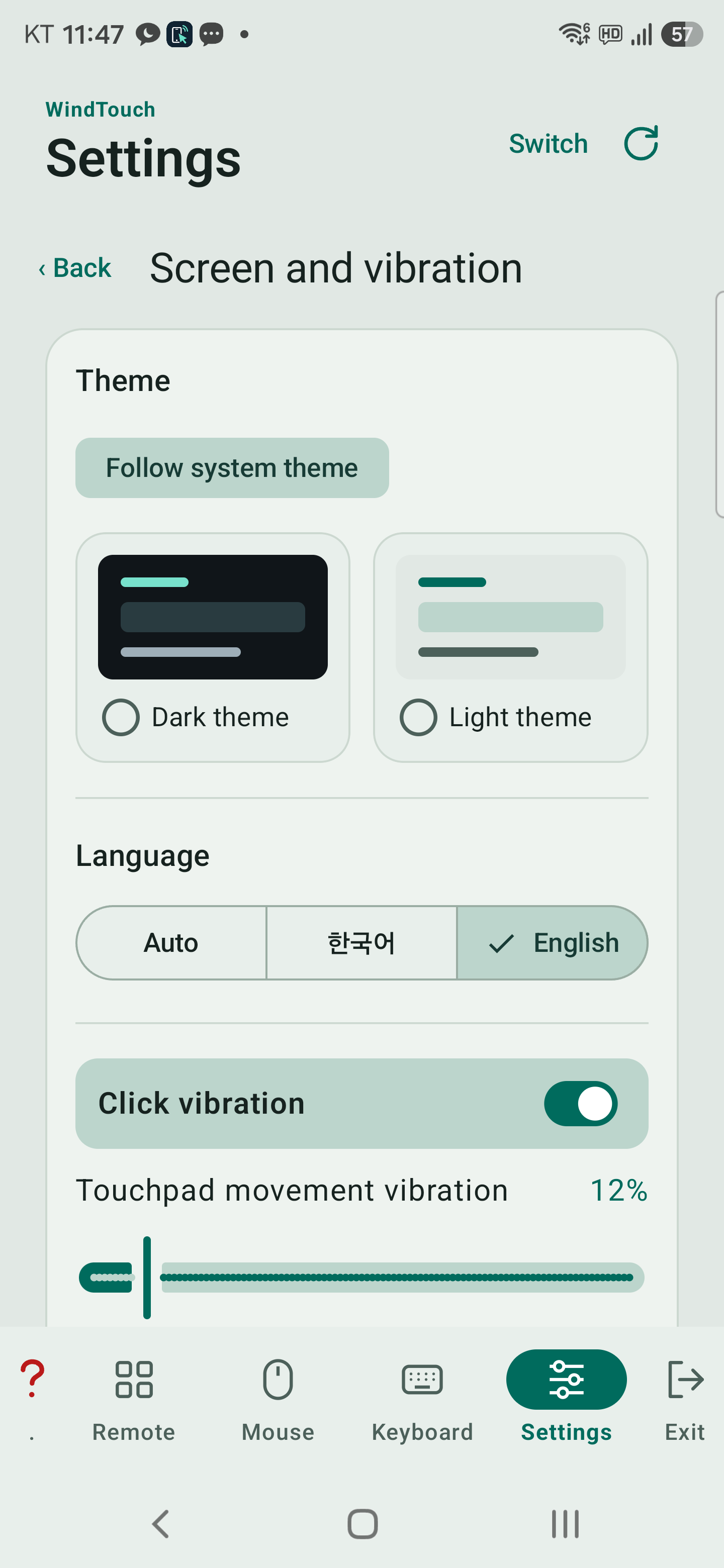
| Screen and vibration | System/Dark/Light theme, click/movement vibration, keep-screen-on and hiding the help button |
| Connection help | User guide · Help, FAQ, QnA, permissions and connection checks, Activity and errors |
| App information | Version, privacy policy, purchases/license and developer details |
Choose a lighter appearance
Open Settings → Screen and vibration → Theme and choose Follow system theme, Dark theme or Light theme.
A fresh installation follows the system theme. Light theme uses a subdued pale background with distinct buttons and selected-tab highlights. Your choice is kept for the next launch.
Gestures and vibration
Open Settings → Touchpad to adjust tap sensitivity and enable individual gestures. Zoom speed ranges from 0.5× to 3.0×. Zoom and three-finger actions require premium access.
In Screen and vibration, adjust click and movement vibration. Movement strength ranges from 0 to 100%, with a duration of 10–80 ms. Fresh-install defaults are 12% and 25 ms; 0% disables movement vibration. The feel depends on the phone’s hardware and how you hold it.
Help and troubleshooting
Enable the hide-help-button setting in Screen and vibration to hide the ? icon. You can still open Connection help → User guide · Help. FAQ and QnA are also under Connection help. Web pages require internet access and a browser.
When reporting a problem, include the version from App information, the phone and target models, and the steps to reproduce it. Check Connection help → Activity and errors for connection and transmission details.
Background connection
Connection maintenance is still subject to Android battery restrictions.
After approximately 30 minutes continuously in the background, the app exits.
Returning to the app cancels that pending exit.