Mouse, Touchpad and Air
Your phone as a mouse, keyboard and remote.
Guide updated for 0.9.79 · 24 October 2026
Mouse, Touchpad and Air
Connect your PC as a Bluetooth input device first.
A Wi-Fi TV remote connection alone does not provide PC mouse input.
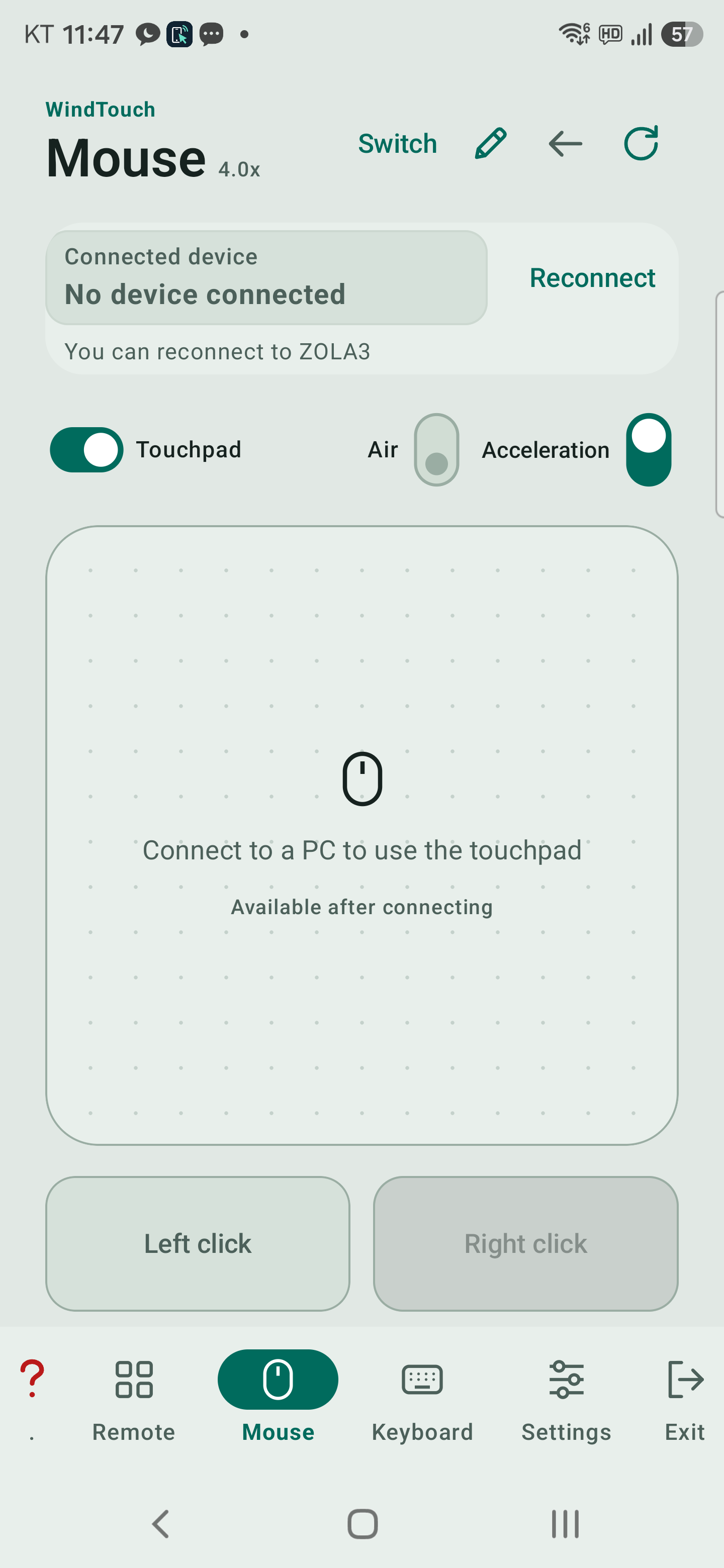
Touchpad and Mouse
- Touchpad: move one finger to position the pointer.
Configure tap-click, two-finger click and scrolling in Settings → Touchpad. - Mouse: displays separate Wheel and Middle areas.
- Drag: hold the pad for about 0.7 seconds, move, then release to drop.
- Acceleration: with Air off, faster movements produce greater pointer movement.
Air: tilt the phone
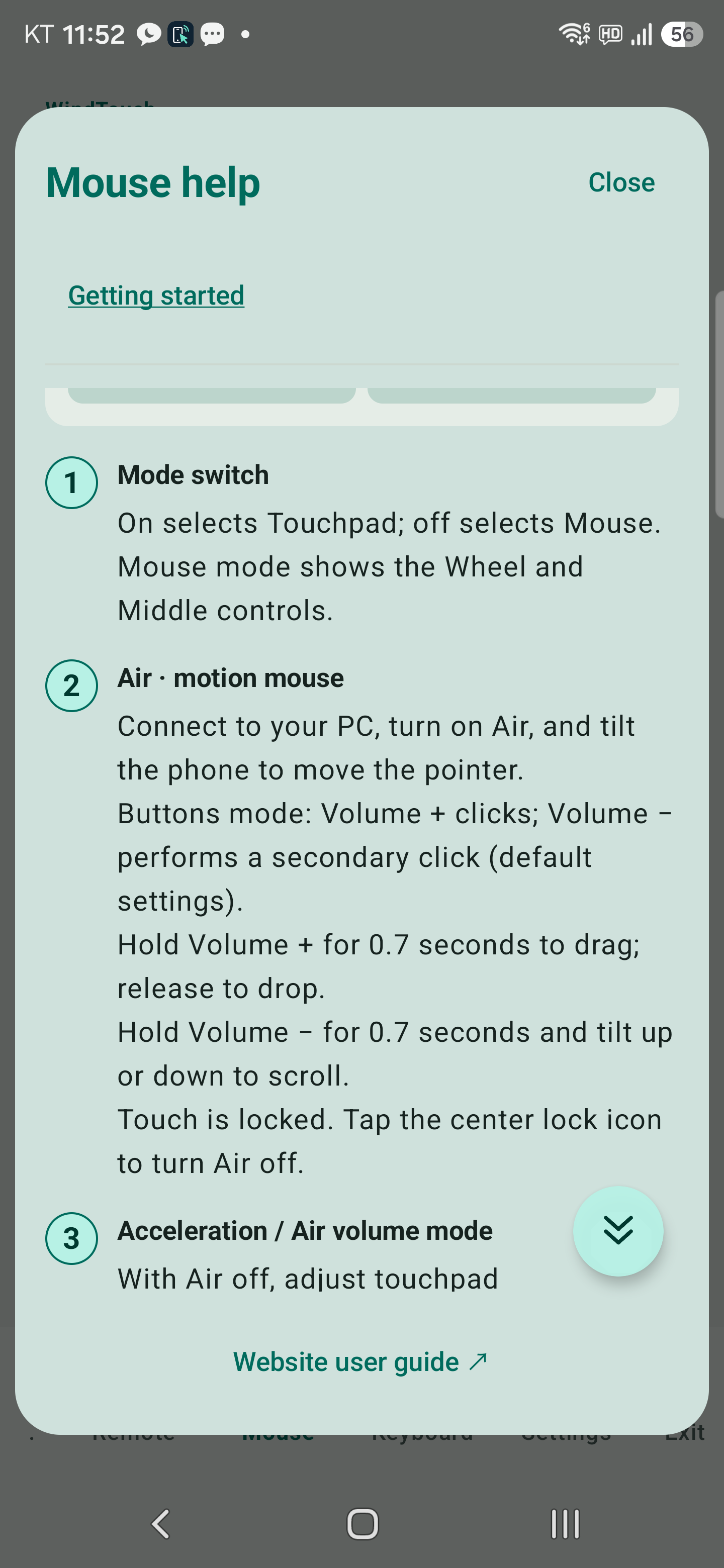
Air requires a supported rotation sensor and a Bluetooth input connection.
Air locks pad touch to reduce accidental input.
Tap the center lock to turn Air off and unlock touch.
The Acceleration control changes to Pages / Buttons when Air is on.
On selects Pages; off selects Buttons.
Small-motion filtering and click-time pointer freezing help reduce hand shake.
| Mode / action | How to use the volume buttons |
|---|---|
| Buttons | In the default layout, volume + is left click and volume − is right click. Their roles follow the handedness and PC primary-button settings. |
| Click / drag | Release the primary-click button before 0.7 seconds for a click. Press and release twice quickly for a double-click. Hold for at least 0.7 seconds, then move to drag. Release to drop. |
| Wheel | Briefly press and release the secondary button for a secondary click. Hold for at least 0.7 seconds and tilt up or down to scroll. Release to stop scrolling. |
| Pages | Volume + sends Page Down; volume − sends Page Up. Select the presentation window on the PC first. |
Double-click recognition and page-key behavior also depend on the PC and application.
Test in the actual presentation program before presenting.
Air example: presentations
- Connect your phone and PC over Bluetooth.
- Start a PowerPoint slide show and select its window on the PC.
- Turn on Air in the Mouse tab.
- Turn on the Pages/Buttons switch to select Pages.
- Volume +: next slide
Volume −: previous slide
Switch to Buttons when you need to click.
Keep the Mouse tab open during the presentation.