Custom controls
Your phone as a mouse, keyboard and remote.
Guide updated for 0.9.79 · 24 October 2026
Custom controls
Open the pencil in the top bar or Settings → Custom controls. Shortcuts, saved phrases, custom remotes and device profiles require premium access. Check the connected device and target window before running an action.
Shortcuts, Wait and repeated sequences
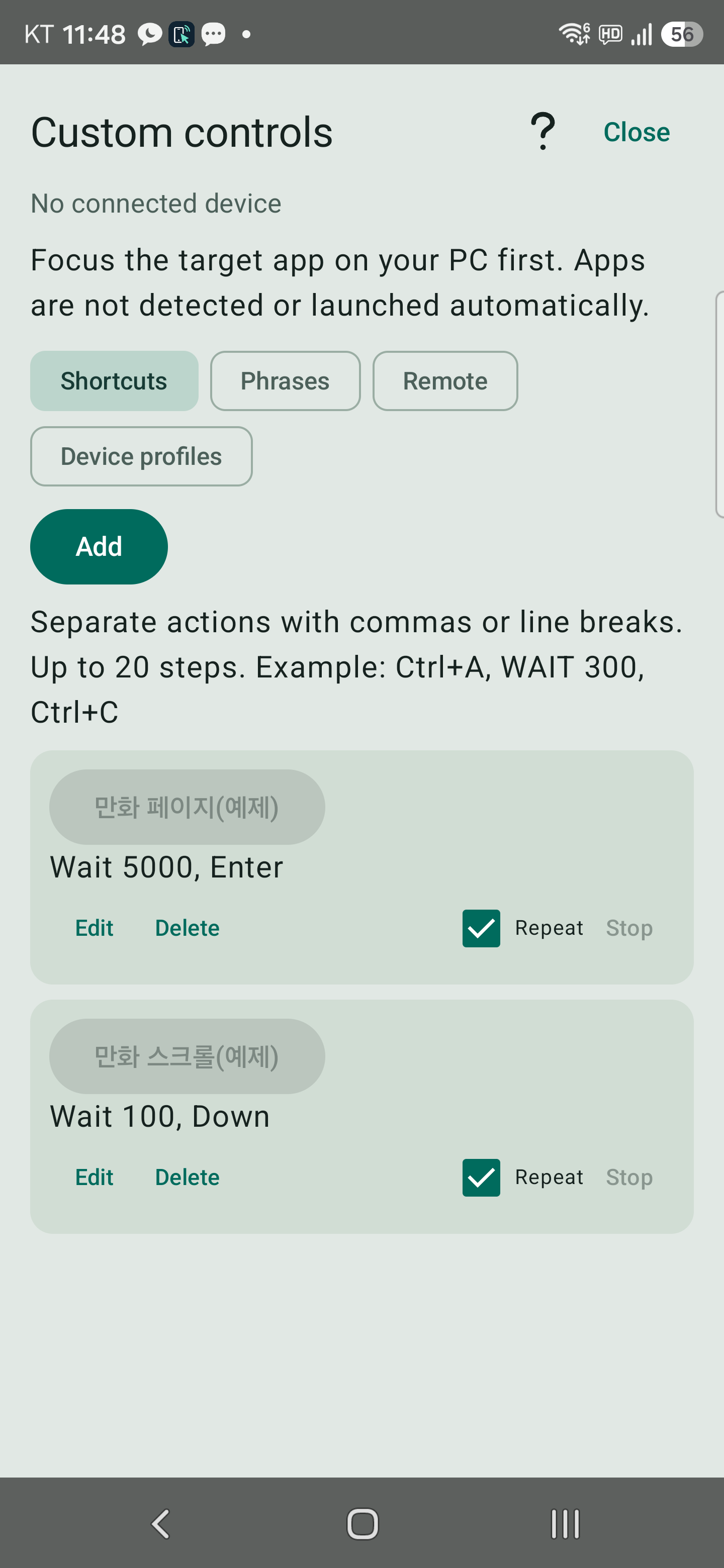
- Open Shortcuts → Add, name the action and enter its steps. Separate actions with commas or line breaks, up to 20 steps.
Wait 5000, Enterwaits 5 seconds, then sends Enter. Wait uses milliseconds;Wait 300is 0.3 seconds.- Tap the saved button to run it. Enable Repeat to repeat the full sequence. Use Stop to end it.
The comic-page example uses Wait 5000, Enter; the comic-scroll example uses Wait 100, Down. Your viewer must accept those keys. Transmission adds time, so the actual interval can exceed the Wait value.
Repeating stops when you close Custom controls, put WindTouch in the background, disconnect, switch devices or lose premium access. Wait pauses an active sequence; it does not schedule an action for a time of day.
Saved phrases, remotes and device profiles
- Saved phrases: keep frequently used text and tap to send immediately. Line breaks are sent too, so select the destination field first.
- Remotes: use shortcut presets for YouTube, presentations and browsers. They do not automatically open or select the target application.
- Device profiles: save preferences such as pointer speed, handedness, scroll direction and pad mode for a connected device.